For the complete documentation index, see llms.txt. Prefer markdown by appending.mdto documentation URLs or sendingAccept: text/markdown.
Dodo Payments
Add Dodo Payments with API keys, product mapping, webhooks, and the hosted customer portal for managing subscriptions and invoices.
Dodo Payments is another billing provider available within TurboStarter. Here we'll go through the configuration and how to set it up as a provider for your app.
To switch to Dodo Payments, update the exports in packages/billing/web/src/providers:
export * from "./dodo-payments";export * from "./dodo-payments/env";Then, let's configure the integration:
Get API key
After you create your Dodo Payments account, go to Developer > API Keys in the dashboard and generate an API key for your app.
TurboStarter uses the server-side Dodo SDK, so you only need the secret API key.
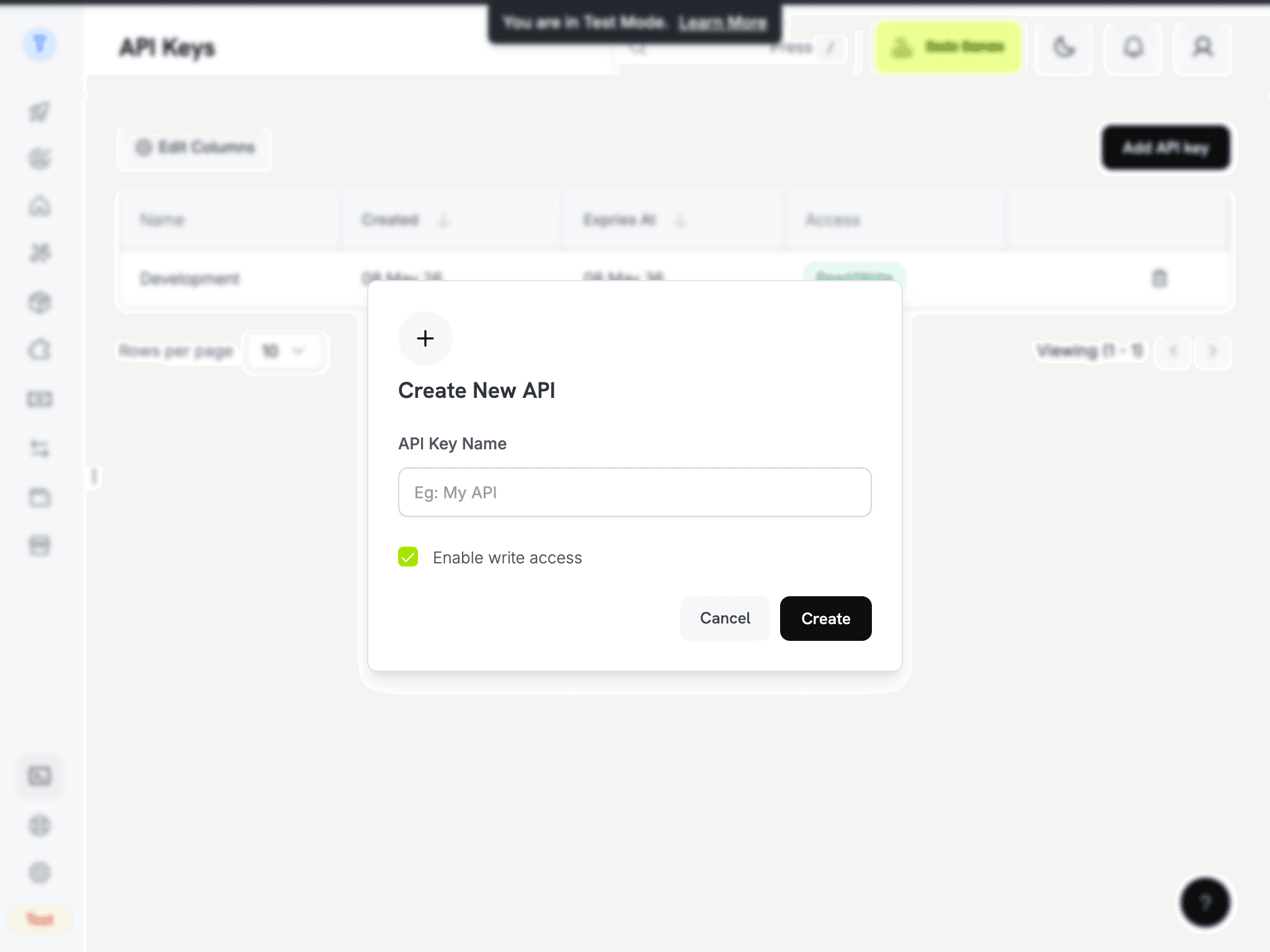
For local development, use Test Mode so you can safely test checkouts and webhooks without affecting live transactions.
Dodo Payments API Introduction
docs.dodopayments.com
Set environment variables
You need to set the following environment variables:
DODO_PAYMENTS_API_KEY="" # Your Dodo Payments API key
DODO_PAYMENTS_WEBHOOK_KEY="" # Your Dodo Payments webhook secret key
DODO_PAYMENTS_ENVIRONMENT="test_mode" # "test_mode" or "live_mode"
Please do not add the secret keys to the .env file in production. During development, you can place them in .env.local as it's not committed to the repository. In production, set them in the environment variables of your hosting provider.
Create products
For your users to choose from the available plans, you need to create those products first in Dodo Payments.
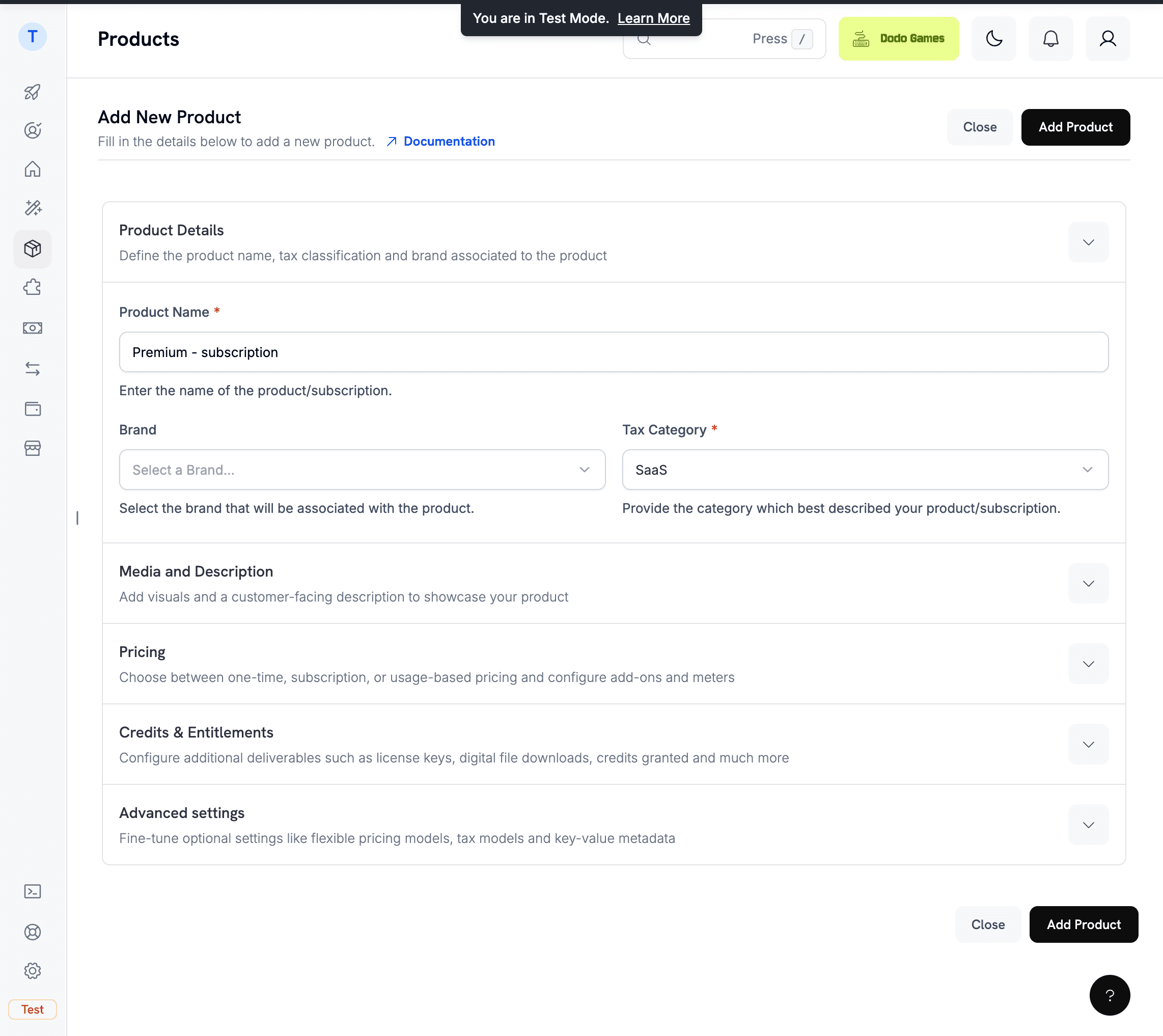
Create one product per purchasable billing variant you want to offer in TurboStarter.
This is important because the current Dodo Payments provider implementation uses the billing variant id as the Dodo product_id during checkout and subscription sync.
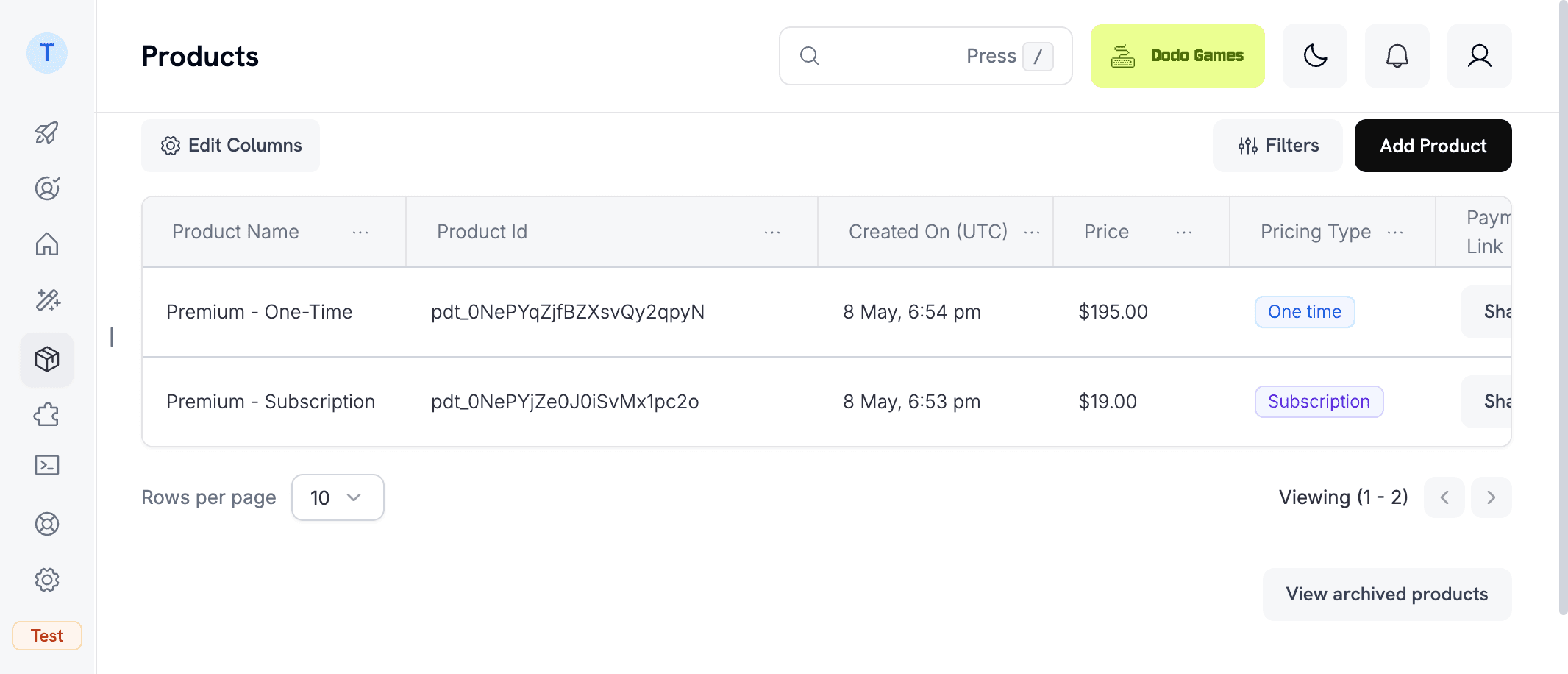
Unlike Stripe, Dodo Payments does not map naturally to a single product with multiple prices in the current TurboStarter implementation. Instead, each variant in your billing config should point at the exact Dodo product you want to sell.
Match the product id with configuration
You need to make sure that the variant ID you set in the billing configuration matches the Dodo Payments product_id.
See configuration for more information.
Create a webhook
To sync subscription status, successful payments, failed payments, and one-time orders back into your database, you need to set up a webhook.
The webhook handling code comes ready to use with TurboStarter. You only need to create the endpoint in Dodo Payments and point it to your app.
To configure a new webhook, go to Developer > Webhooks in the Dodo Payments dashboard and click Add Webhook.
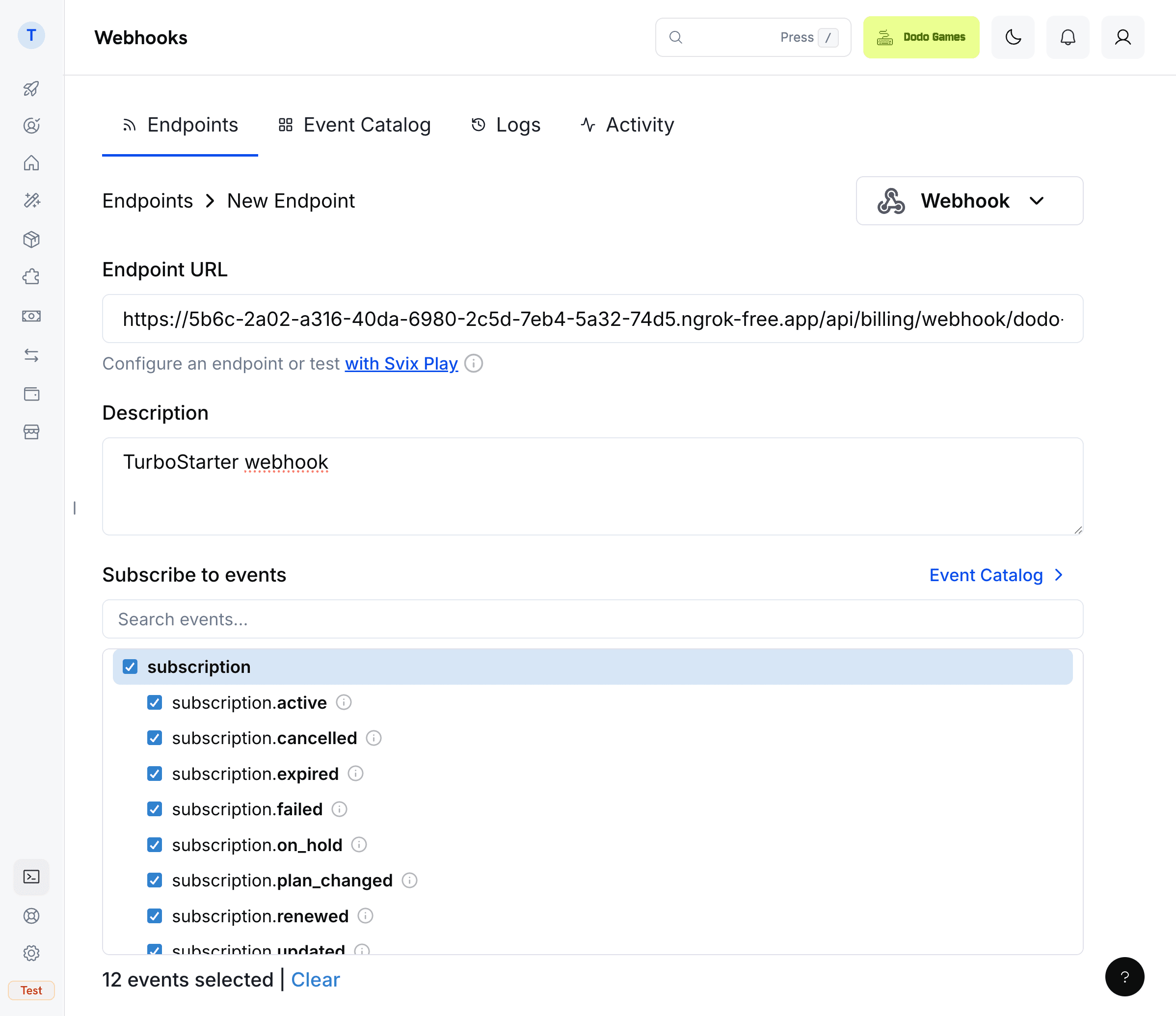
Select the following events:
- For subscriptions:
subscription.activesubscription.updatedsubscription.on_holdsubscription.renewedsubscription.plan_changedsubscription.failedsubscription.cancelledsubscription.expired
- For one-off payments and checkout completion:
payment.succeededpayment.failedpayment.cancelledpayment.processing
After creating the webhook, copy its Signing Secret and store it in:
DODO_PAYMENTS_WEBHOOK_KEY=<your-webhook-secret>To get the callback URL for the webhook, you can either use a local development URL or the URL of your deployed app:
Local development
You have two good options for local webhook testing:
Dodo Payments provides a CLI for forwarding real test-mode webhooks to your local app.
First, log in and make sure you're using Test Mode:
dodo loginThen start listening and forward events to your local endpoint:
dodo wh listen --forward-to http://localhost:3000/api/billing/webhook/dodo-paymentsYou can also trigger mock events locally while testing:
dodo wh triggerDodo Payments Webhooks
docs.dodopayments.com
If you prefer testing with a public callback URL, you can use ngrok to create a tunnel to your local machine.
To do so, install ngrok and run it with the following command while your TurboStarter web development server is running:
ngrok http 3000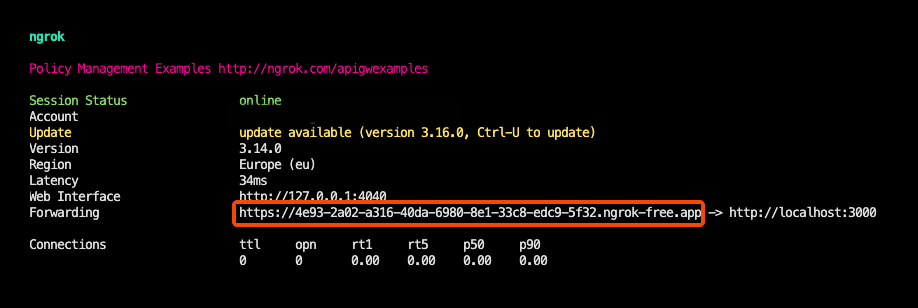
This will give you a public URL that you can use when creating the webhook in Dodo Payments. Just append /api/billing/webhook/dodo-payments to it.
Production deployment
When going to production, configure the webhook URL in Dodo Payments using the same endpoint path:
/api/billing/webhook/dodo-payments
If your app is hosted at https://myapp.com, then the webhook URL should be:
https://myapp.com/api/billing/webhook/dodo-payments
All the relevant events above are already handled by TurboStarter. If you want to handle more events, check Webhooks for more information.
Configure the customer portal
TurboStarter uses the Dodo Payments Customer Portal API to create a billing portal session for the current customer and redirect them to Dodo's hosted portal.
That means your users can manage subscriptions, billing history, invoices, and payment methods without you building a custom management UI.
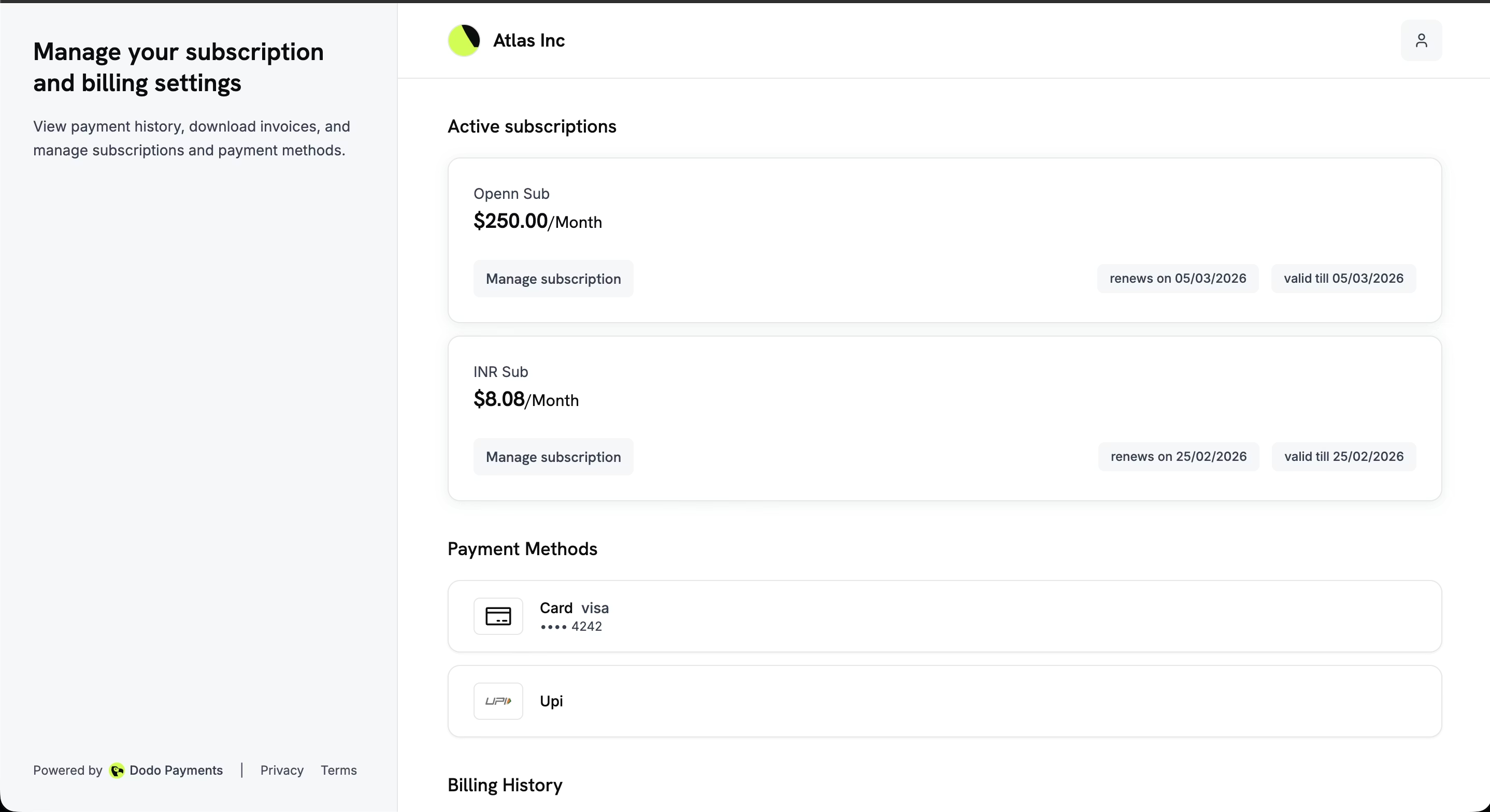
The current implementation creates a dynamic portal session server-side using the Dodo customer id, so there is no extra app-side setup required beyond:
- making sure the customer exists in Dodo Payments
- keeping your API key and webhook key configured correctly
- using the correct Dodo environment (
test_modeorlive_mode)
If you want to explore the hosted portal outside the app flow, Dodo Payments also provides static environment-specific customer portal links based on your business_id.
Dodo Payments Customer Portal
docs.dodopayments.com
Add discount
You can add a discount for your customers that will apply during checkout.
Create the discount code in Dodo Payments and then reference that same code in your TurboStarter billing configuration.
The current Dodo checkout integration passes the configured discount.code to Dodo as discount_code, so the value must match exactly.
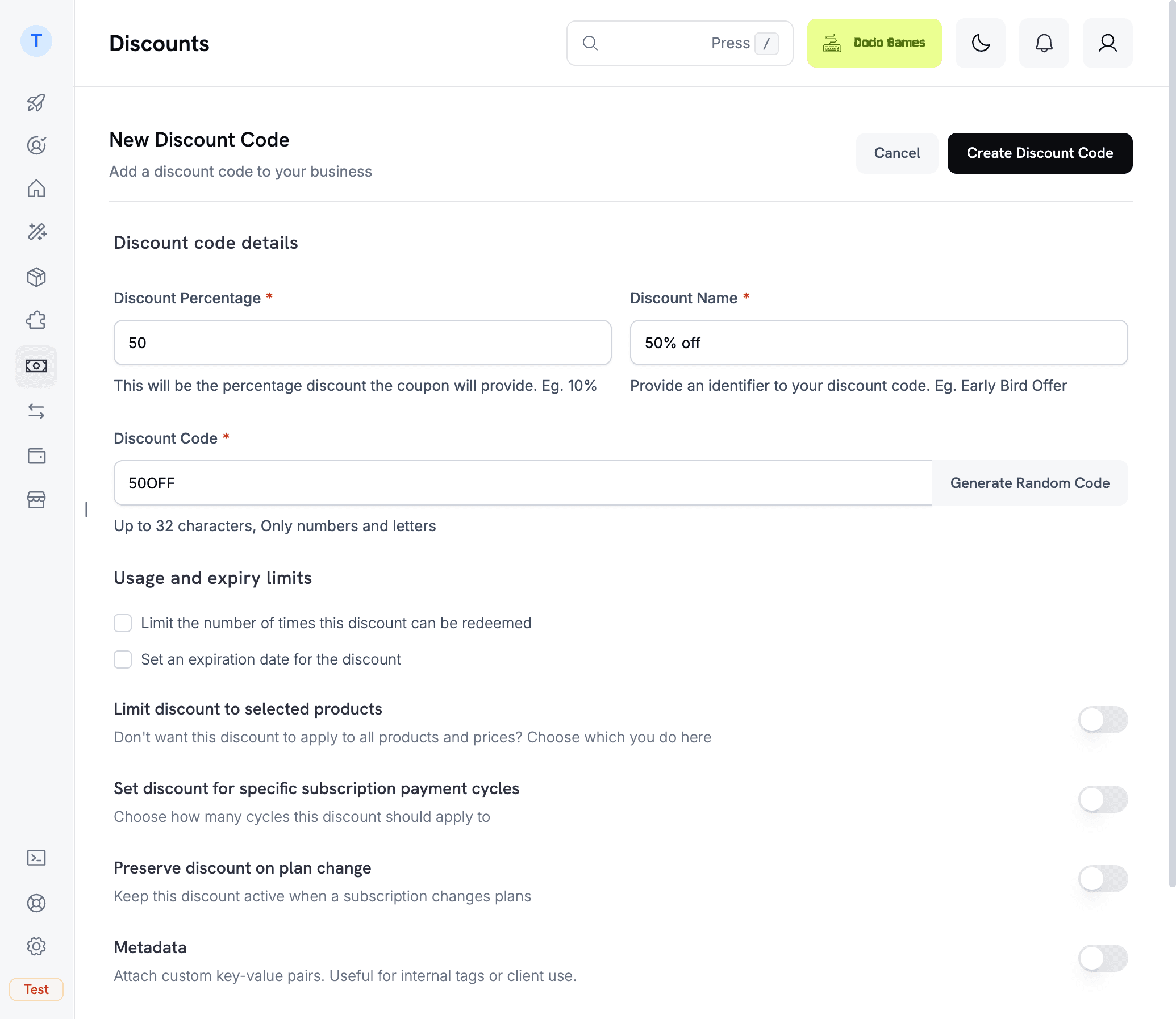
You also need to add the discount code and details to TurboStarter billing configuration to enable displaying it in the UI, creating checkout sessions with it, and calculating prices.
See discounts configuration for more details.
Dodo Payments Checkout Sessions
docs.dodopayments.com
That's it! You have now set up Dodo Payments as a billing provider for your app.
Feel free to add more products, discounts, and subscription plans, then test the full checkout and portal flow in test_mode before switching to live_mode.
Ensure configuration matches
Make sure the data you set in TurboStarter matches the products, discounts, environment, and webhook settings you created in Dodo Payments.
See configuration for more information.
How is this guide?
Last updated on