For the complete documentation index, see llms.txt. Prefer markdown by appending.mdto documentation URLs or sendingAccept: text/markdown.
E2E tests
Run end-to-end tests with Playwright against a production build. Covers auth flows, email testing, cross-browser CI, and the test layout.
End-to-end (E2E) tests verify that your application works correctly from a user's perspective by simulating real browser interactions against a running app and a real database. Learn more in the Playwright intro.
TurboStarter uses Playwright for web E2E tests.
Why Playwright?
Playwright is fast, reliable, and built for modern web apps. It auto-waits for elements, supports Chromium/Firefox/WebKit from a single API, captures traces and videos on failure, and ships a great UI mode for debugging.
Why write E2E tests?
Unit tests are fast and focused, but they cannot catch integration issues between the UI, API, database, and third-party services. E2E tests fill that gap:
- User flow bugs: broken redirects, stale session state, or form validation that only fails in the browser
- Auth regressions: login, magic links, OTP, and persisted sessions across page loads
- Cross-browser issues: layout or behavior differences in Chrome, Firefox, and Safari
- Email flows: magic link and OTP delivery when using a local SMTP catcher
E2E tests are slower than unit tests, so use them for critical paths like authentication, onboarding, billing checkout, and other flows where a regression would block users.
Prerequisites
Before running E2E tests locally, make sure your development environment is ready:
- Start services: Postgres and Mailpit must be running. The fastest way is:
pnpm services:setupThis starts Docker services and runs database migrations. See development setup for details.
- Environment files: copy the example env files if you have not already:
cp .env.example .env
cp apps/web/.env.example apps/web/.env.local- Install Playwright browsers (first time only):
pnpm --filter web exec playwright installFor cross-browser runs, install the browsers you need:
pnpm --filter web exec playwright install chromium firefox webkitMailpit for email flows
Magic link and OTP sign-in tests read emails from Mailpit, which is included in the Docker setup. Make sure Mailpit is reachable at http://localhost:8025 (the default).
Test structure
E2E tests live in apps/web/e2e/:
apps/web/e2e/
├── constants.ts          # Test user credentials and paths
├── env.ts                # Loads Next.js env before Playwright starts
├── helpers/
│   └── mailbox.ts        # Mailpit API helpers for email flows
├── pages/                # Page Object classes
│   ├── login.page.ts
│   ├── dashboard.page.ts
│   └── settings.page.ts
├── setup/
│   ├── global-setup.ts   # Migrates and seeds the database
│   └── auth.setup.ts     # Creates persisted auth state
├── specs/                # Test files
│   ├── auth.sign-in.spec.ts
│   └── dashboard.authenticated.spec.ts
├── .playwright/          # Generated auth state (gitignored)
├── playwright-report/    # HTML report output
└── test-results/         # Screenshots, videos, traces
Configuration
Playwright is configured in apps/web/playwright.config.ts. Key settings:
- Production-like server: tests run against
next build+next start, notnext dev. This catches issues that only appear in production builds. - Global setup: migrates the database and seeds test users before any test runs.
- Cross-browser projects: Chrome, Firefox, and Safari each get their own project.
- Auth projects: a setup project signs in once and saves
storageState; authenticated specs reuse it. - Artifacts on failure: screenshots, videos, and traces are retained when a test fails.
export default defineConfig({
  testDir: "./e2e",
  globalSetup: "./e2e/setup/global-setup.ts",
  retries: isCI ? 2 : 0,
  use: {
    baseURL,
    trace: "on-first-retry",
    screenshot: "only-on-failure",
    video: "retain-on-failure",
  },
  projects: browsers.flatMap(({ name, device }) => [
    { name: `${name}-setup`, testMatch: /setup\/.*\.setup\.ts/ },
    { name, testMatch: /specs\/.*\.spec\.ts/, testIgnore: /authenticated/ },
    {
      name: `${name}-authenticated`,
      testMatch: /specs\/.*\.authenticated\.spec\.ts/,
      dependencies: [`${name}-setup`],
      use: { storageState: authStatePath },
    },
  ]),
  webServer: {
    command: `pnpm with-env pnpm turbo build --filter=web && pnpm --filter web start`,
    reuseExistingServer: !isCI,
    url: `${baseURL}/api/status`,
    timeout: 300_000,
  },
});
Point tests at an existing server
Set E2E_BASE_URL to skip the built-in webServer and run against a server you already have running (for example, during debugging):
E2E_BASE_URL=http://localhost:3000 pnpm --filter web test:e2eTest data
Global setup runs database migrations and seeds a test user via pnpm -F @workspace/auth db:seed. The default credentials are derived from your SEED_EMAIL and SEED_PASSWORD environment variables:
| Variable | Default | Purpose |
|---|---|---|
SEED_EMAIL | me@turbostarter.dev | Base email for seed data |
SEED_PASSWORD | Pa$$w0rd | Password for seeded users |
E2E_USER_EMAIL | me+user@turbostarter.dev | Email used by E2E tests |
E2E_USER_PASSWORD | Same as SEED_PASSWORD | Password used by E2E tests |
Override any of these in your .env when you need different test accounts. The E2E user is a +user alias of the seed email so it stays predictable without colliding with other seed data.
Page Object pattern
Tests use the Page Object Model to keep selectors and actions in one place. Each page class wraps Playwright calls behind readable methods:
export class LoginPage {
  constructor(private readonly page: Page) {}

  async goto() {
    await this.page.goto(pathsConfig.auth.login);
  }

  async signIn(email: string, password: string) {
    await this.selectTab("password");
    await this.page.locator("#password-login-email").fill(email);
    await this.page.locator("#password-login-password").fill(password);
    await this.page
      .locator("#password-login-form button[type='submit']")
      .click();
  }
}
Specs stay focused on user journeys:
test("user can sign in with email and password", async ({ page }) => {
  const login = new LoginPage(page);
  const dashboard = new DashboardPage(page);

  await login.goto();
  await login.signIn(e2eUser.email, e2eUser.password);
  await dashboard.waitForReady();
});
Authenticated tests
Signing in through the UI for every test is slow. TurboStarter uses Playwright setup projects to sign in once and persist the session:
auth.setup.tssigns in and saves cookies toe2e/.playwright/auth/user.json- Specs named
*.authenticated.spec.tsrun in a project that loads thatstorageState - Each browser (Chrome, Firefox, Safari) has its own setup project
This means authenticated tests start with a valid session and can jump straight to the feature under test.
Email flows
Password sign-in is straightforward, but TurboStarter also tests magic link and email OTP flows end-to-end. The mailbox.ts helper talks to Mailpit's API:
export const waitForEmailHtml = async (
  email: string,
  options?: { subject?: string },
) => {
  const messages = await searchMessages(email);
  // ...
};

export const extractMagicLink = (html: string) => {
  /* ... */
};
export const extractOtp = (html: string) => {
  /* ... */
};
Tests clear the mailbox before each email flow, request a magic link or OTP, then poll Mailpit with expect(...).toPass() until the email arrives:
await expect(async () => {
  const html = await waitForEmailHtml(e2eUser.email, { subject: "magic link" });
  const link = extractMagicLink(html!);
  await page.goto(link!);
}).toPass();
This pattern is more reliable than a fixed sleep() and handles slow email delivery gracefully.
Running tests
All browsers
pnpm --filter web test:e2eThe first run builds the app and starts the production server automatically. Subsequent local runs reuse the server if it is already running.
Single browser
pnpm --filter web exec playwright test --project=chrome
pnpm --filter web exec playwright test --project=firefox
pnpm --filter web exec playwright test --project=safari
Single spec
pnpm --filter web exec playwright test auth.sign-in --workers=1Use --workers=1 when debugging a single flow to avoid parallel interference.
Interactive UI mode
pnpm --filter web exec playwright test --ui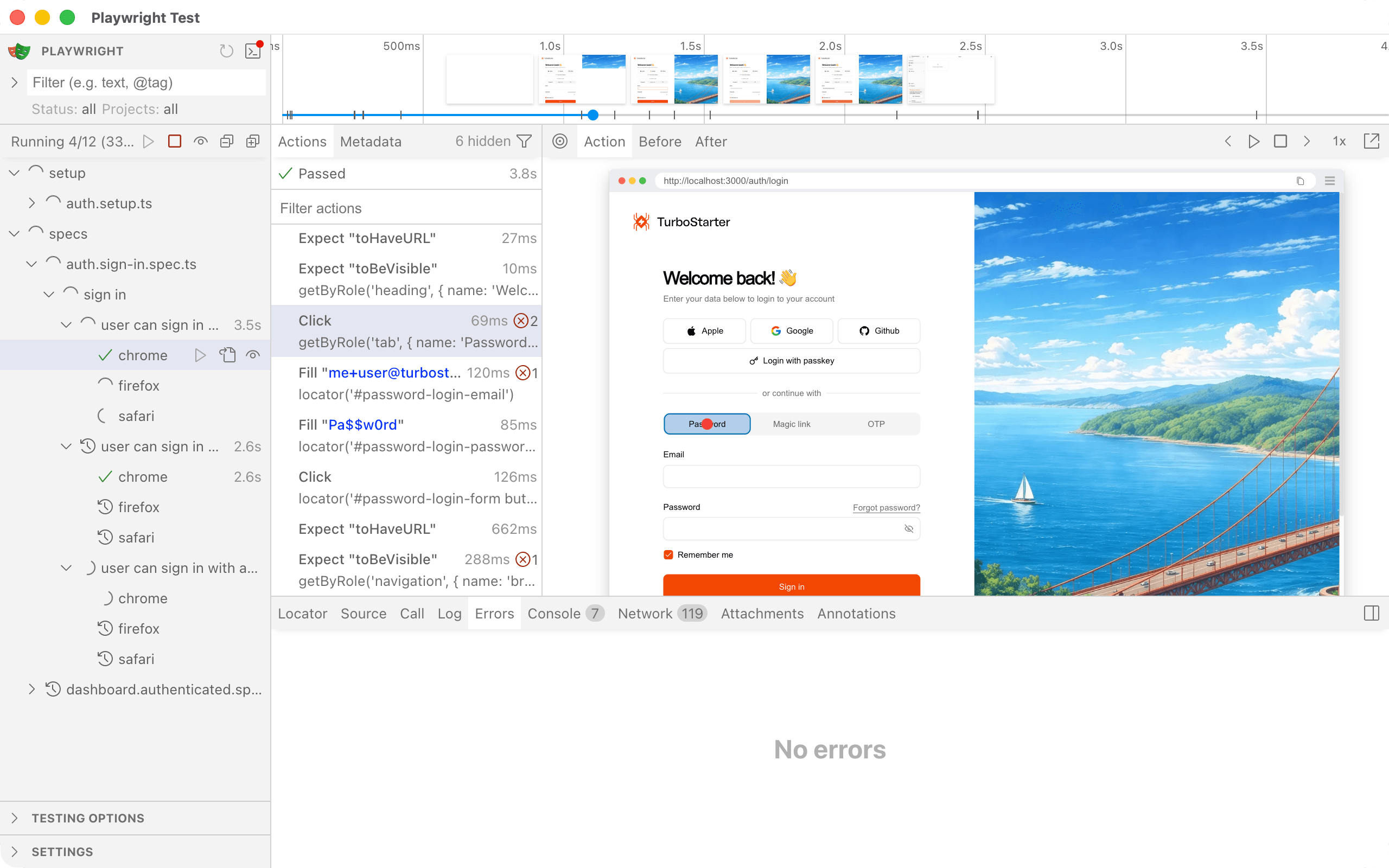
UI mode lets you step through tests, inspect the DOM, and watch traces. It is the fastest way to debug a failing flow. See the UI mode docs.
Debug mode
pnpm --filter web exec playwright test --debugOpens Playwright Inspector so you can pause, step, and inspect each action.
Headed mode
pnpm --filter web exec playwright test --headedRuns tests in a visible browser window. Useful for visual debugging.
View the HTML report
After a test run:
pnpm --filter web exec playwright show-report e2e/playwright-report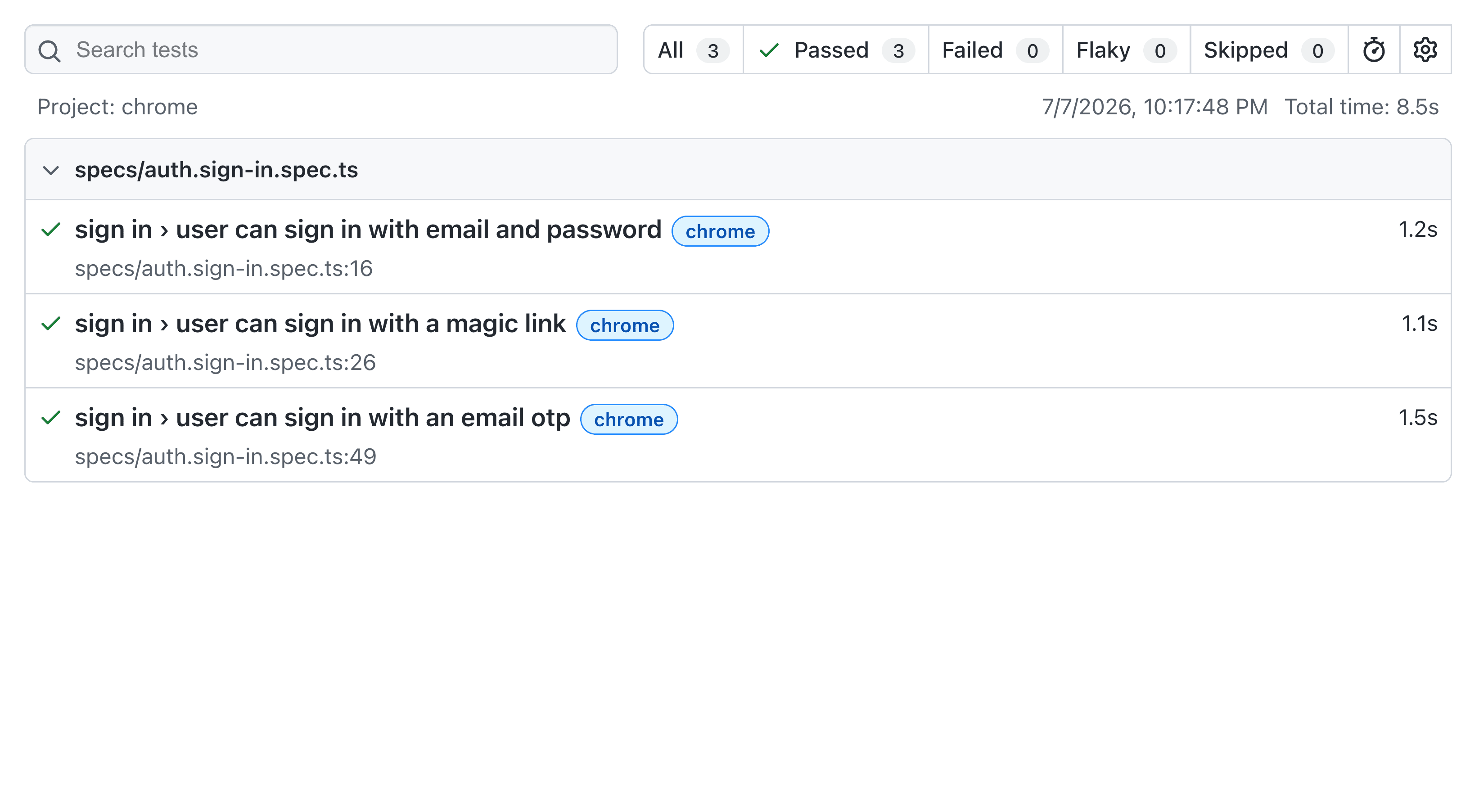
CI
The CI / E2E / Web workflow runs Playwright against Chrome, Firefox, and Safari in a matrix. On pull requests it is label-gated. Add the e2e or e2e-web label when you want it to run. This keeps CI fast for day-to-day changes while still giving you cross-browser verification when it matters.
The workflow uses example env files and Docker services, so no extra secrets are needed beyond your standard Turborepo cache tokens. It uploads HTML reports on completion and screenshots, videos, and traces on failure.
Writing new tests
Unauthenticated flow
Create a new *.spec.ts file in apps/web/e2e/specs/:
import { expect, test } from "@playwright/test";

test("user can access the pricing page", async ({ page }) => {
  await page.goto("/pricing");
  await expect(page.getByRole("heading", { name: "Pricing" })).toBeVisible();
});
Authenticated flow
Name the file *.authenticated.spec.ts so it runs in the authenticated project with a persisted session:
import { expect, test } from "@playwright/test";

test("user sees billing settings", async ({ page }) => {
  await page.goto("/dashboard/settings/billing");
  await expect(page.getByText("Billing")).toBeVisible();
});
Add a Page Object
When a flow involves multiple steps or reused selectors, add a page class in apps/web/e2e/pages/:
export class BillingPage {
  constructor(private readonly page: Page) {}

  async goto() {
    await this.page.goto("/dashboard/settings/billing");
  }

  async waitForReady() {
    await expect(this.page.getByText("Billing")).toBeVisible();
  }
}
Best practices
Test user flows, not implementation
Focus on what users do, not internal API calls. A good E2E test reads like a user story.
// Good: tests a user journey
test("user can sign in and open settings", async ({ page }) => {
  const login = new LoginPage(page);
  await login.goto();
  await login.signIn(e2eUser.email, e2eUser.password);
  // ...
});

// Avoid: testing implementation details
test("POST /api/auth returns 200", async ({ request }) => {
  // This belongs in an API or unit test
});
Use Page Objects for complex flows
Keep selectors and actions in page classes. When the UI changes, you update one file instead of every spec.
Use expect(...).toPass() for async conditions
Email delivery, animations, and network requests can be slow. Polling assertions are more reliable than fixed timeouts:
await expect(async () => {
  const html = await waitForEmailHtml(email);
  expect(html).toBeTruthy();
}).toPass({ timeout: 10_000 });
Keep tests independent
Each test should create or use its own data. Do not rely on test execution order. The global seed provides a known user; authenticated tests use a fresh storageState per browser.
Prefer role and label selectors
Use getByRole, getByLabel, and getByText over CSS selectors when possible. They are more resilient to markup changes and match how users interact with the page.
Run against production builds
Always test against next build + next start. Development mode hides optimizations, middleware behavior, and bundling issues that only surface in production.
Debugging failed tests
When a test fails, Playwright saves artifacts automatically:
| Artifact | Location | When |
|---|---|---|
| Screenshot | e2e/test-results/ | On failure |
| Video | e2e/test-results/ | On failure |
| Trace | e2e/test-results/ | On first retry |
Open the HTML report for a timeline of every action, network request, and console log:
pnpm --filter web exec playwright show-report e2e/playwright-reportFor a specific trace, use the trace viewer:
pnpm --filter web exec playwright show-trace e2e/test-results/<trace-dir>/trace.zip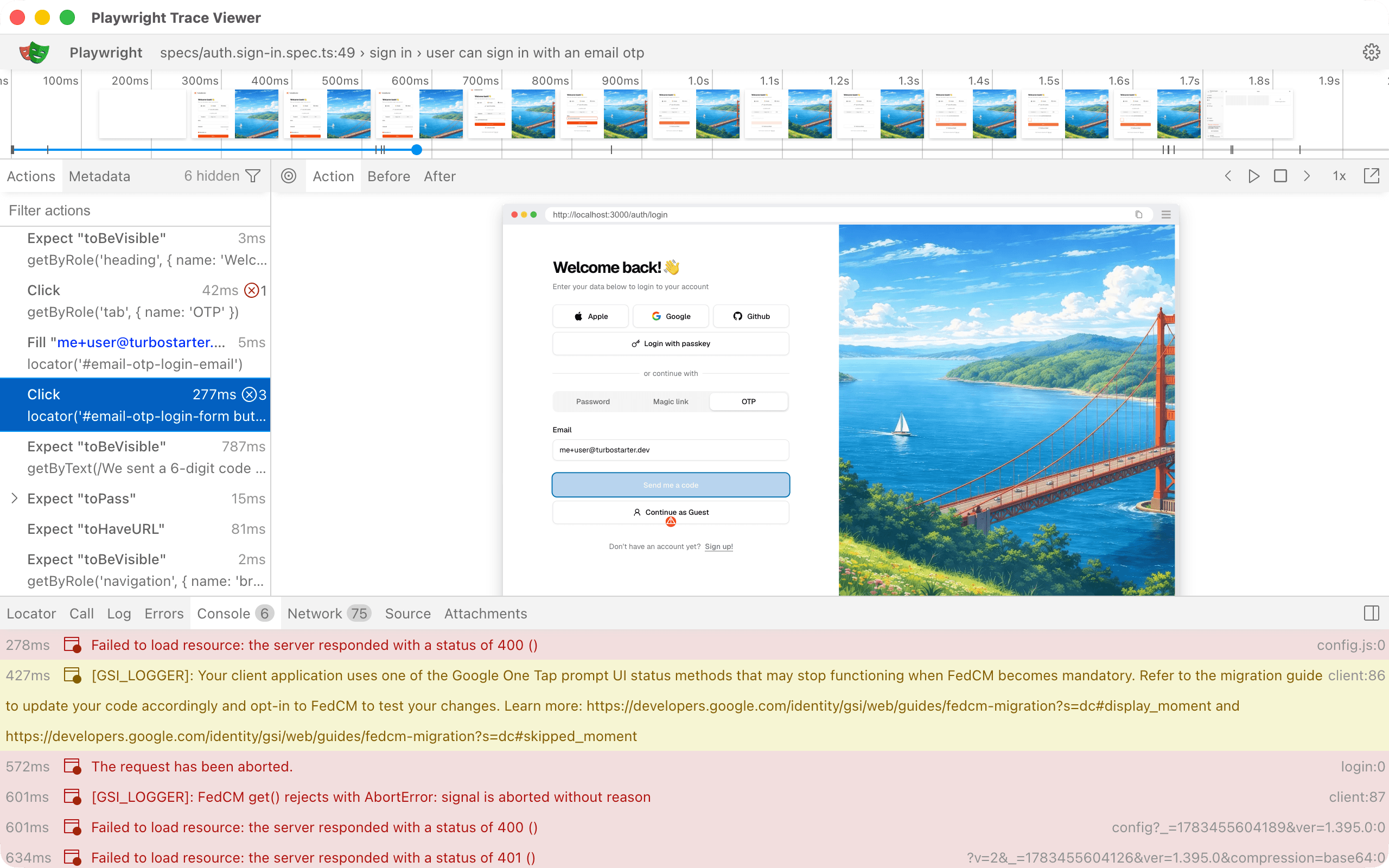
Next steps
- Unit tests: fast, isolated tests for functions and components
- Authentication: auth methods tested by E2E specs
- Emails: Mailpit setup for local email testing
How is this guide?
Last updated on