For the complete documentation index, see llms.txt. Prefer markdown by appending.mdto documentation URLs or sendingAccept: text/markdown.
Subscriptions
Stripe subscription setup for Edge Kit, including recurring prices, webhook delivery, customer portal settings, discounts, and cancellation.
Subscriptions give your customers recurring access to your product. Edge Kit includes checkout, subscription settings, and customer portal access; you connect these flows to your own Stripe account.
Start in Stripe test mode. Your prices, API key, webhook secret, and promotion codes must use the same account and mode.
Prices
Create a Stripe product with monthly and yearly recurring prices. Copy their price IDs into the matching variants in your billing configuration, keeping the displayed amount, billing interval, and trial consistent with Stripe.
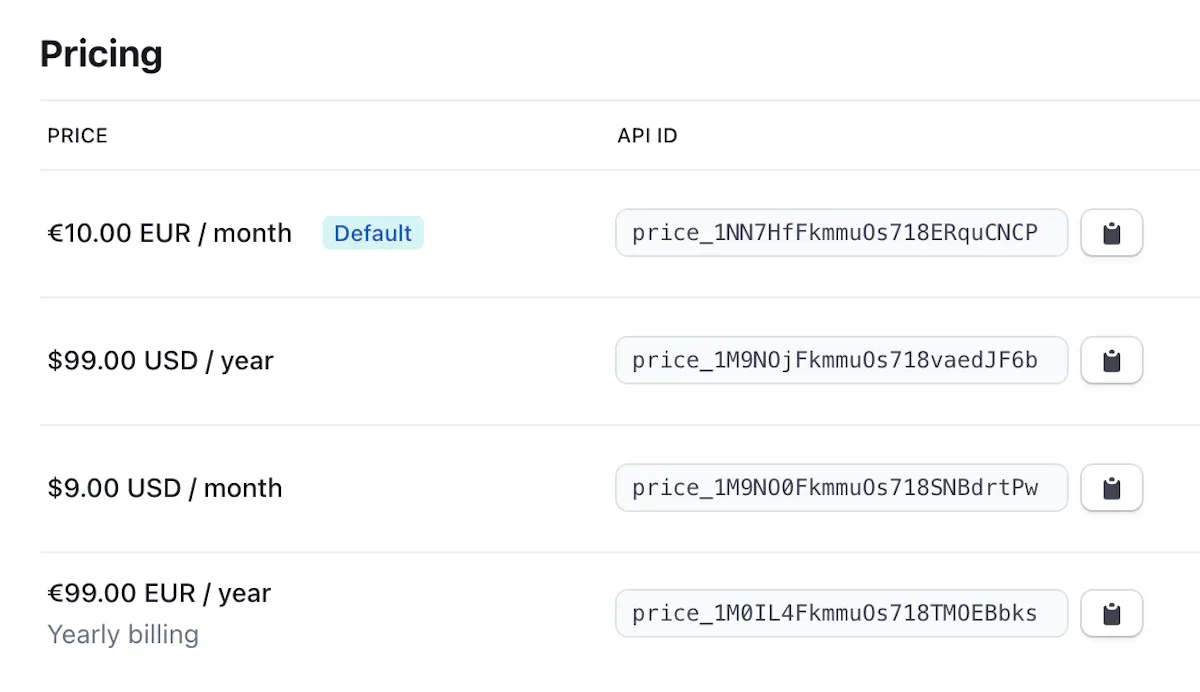
Add STRIPE_SECRET_KEY through environment configuration. Customer creation and checkout are already connected to the account flow.
Webhooks
Webhooks are notifications Stripe sends when a checkout or subscription changes. They keep your app's billing state synchronized even when a customer closes the browser.
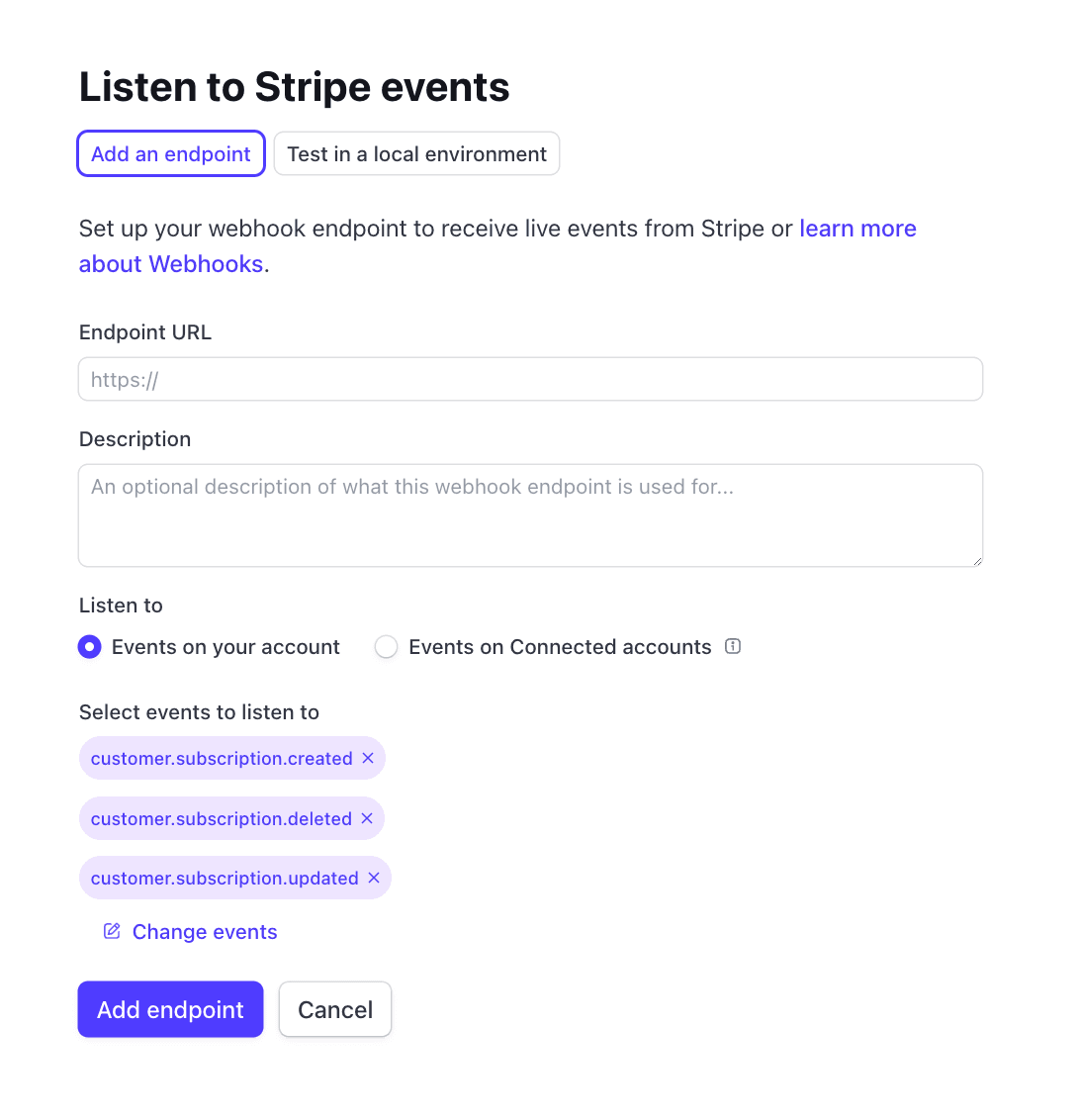
Create a Stripe webhook endpoint at your app's origin:
https://app.example.com/api/auth/stripe/webhookUse the origin from BETTER_AUTH_URL and subscribe to these events:
checkout.session.completed
customer.subscription.created
customer.subscription.updated
customer.subscription.deleted
Save the endpoint's signing secret as STRIPE_WEBHOOK_SECRET. The kit already handles this endpoint through the auth integration. See Better Auth's Stripe documentation for provider requirements.
For local testing, authenticate the Stripe CLI and forward events:
stripe listen --forward-to localhost:3000/api/auth/stripe/webhookUse the listener's signing secret in your local environment and restart development. The listener and a dashboard endpoint have different secrets. Complete a test checkout in the app to verify the full integration.
Customer portal
Enable the operations you want customers to manage in Stripe's Customer Portal, such as payment method changes and cancellation. Select the eligible products and prices if you allow subscription changes.
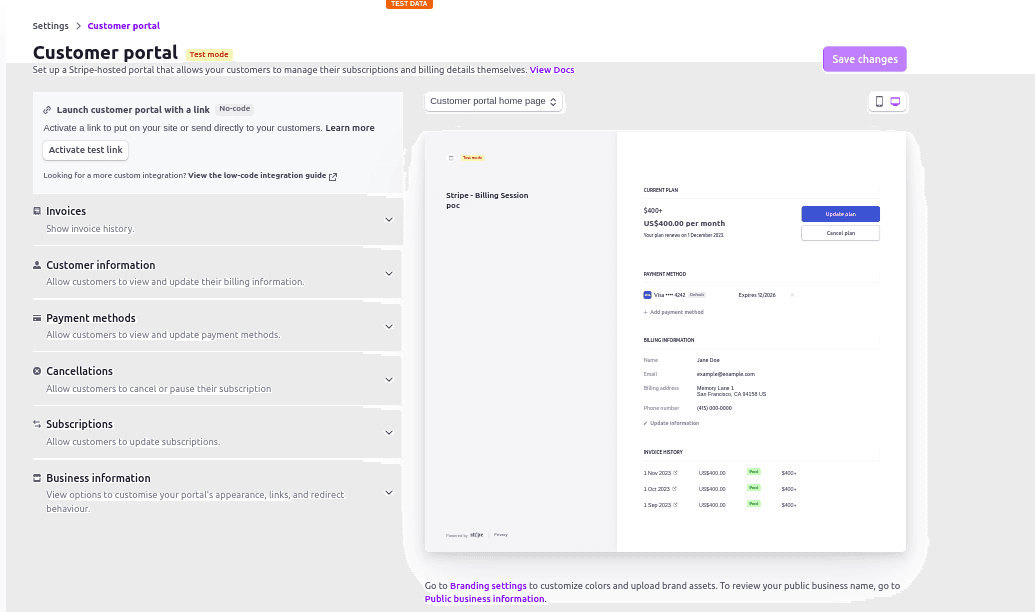
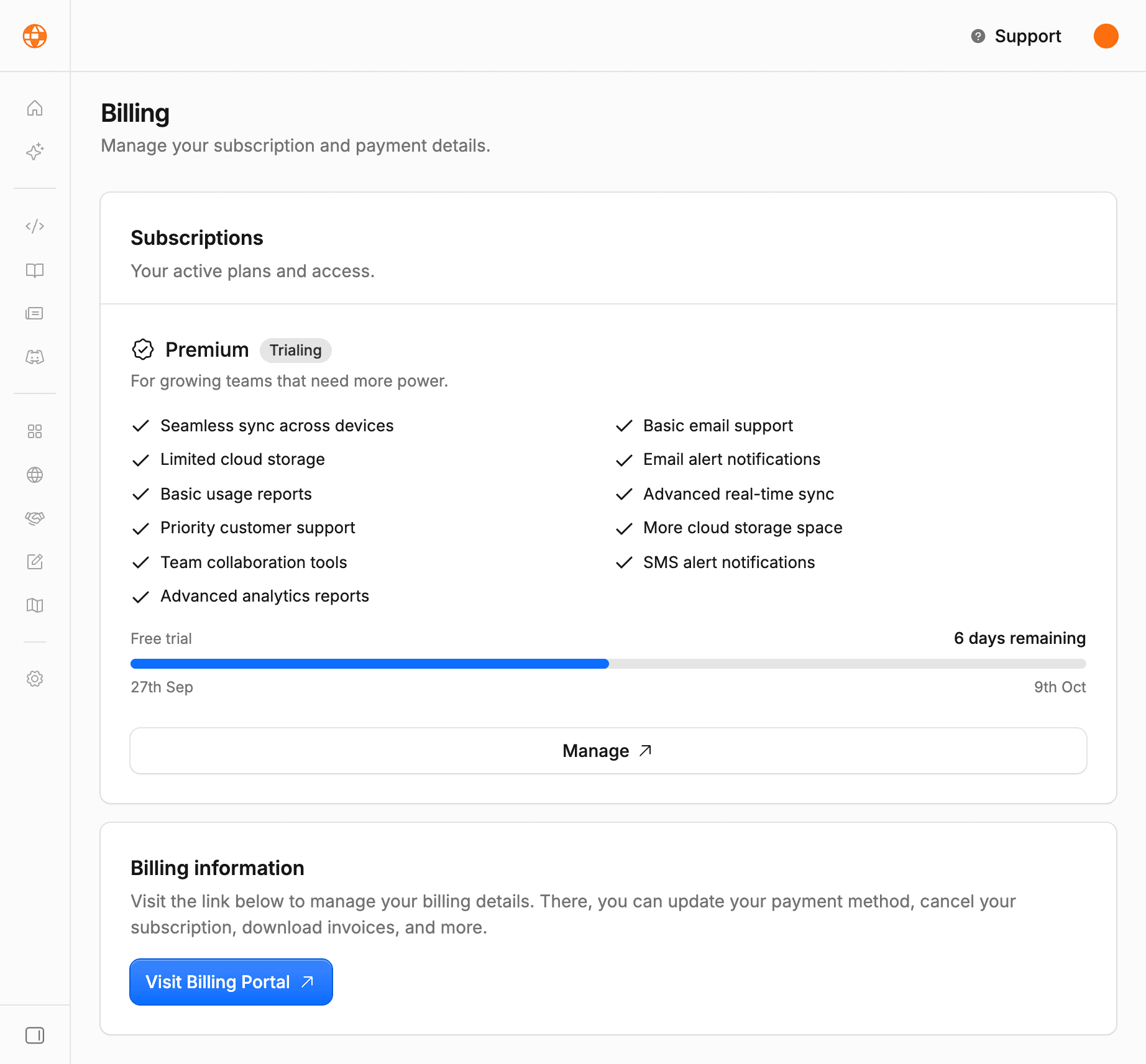
Customers open the portal from billing settings and return to the app afterwards.
Discounts
Create a coupon and customer-facing promotion code in Stripe, then add the same code and eligible prices to the kit's catalog.
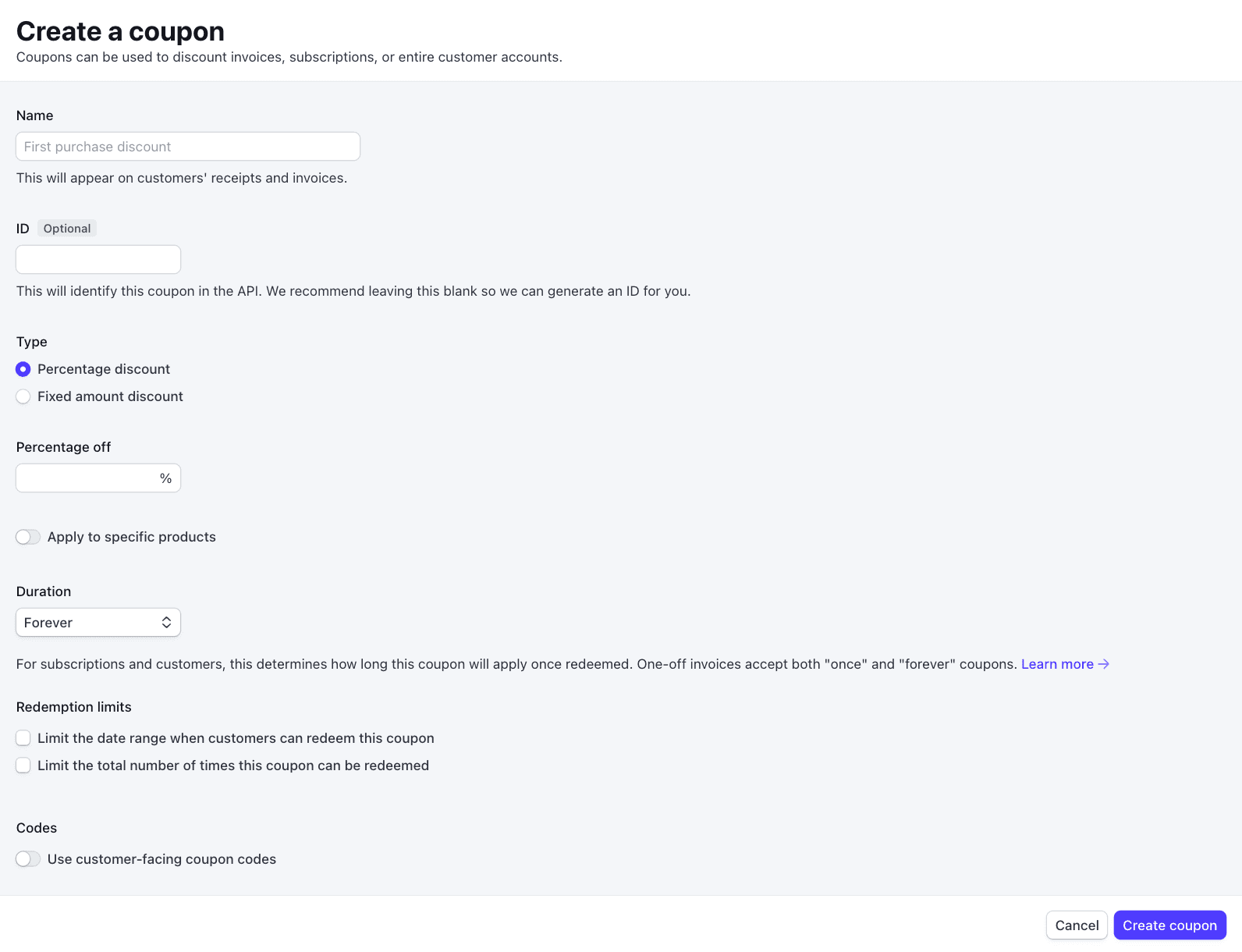
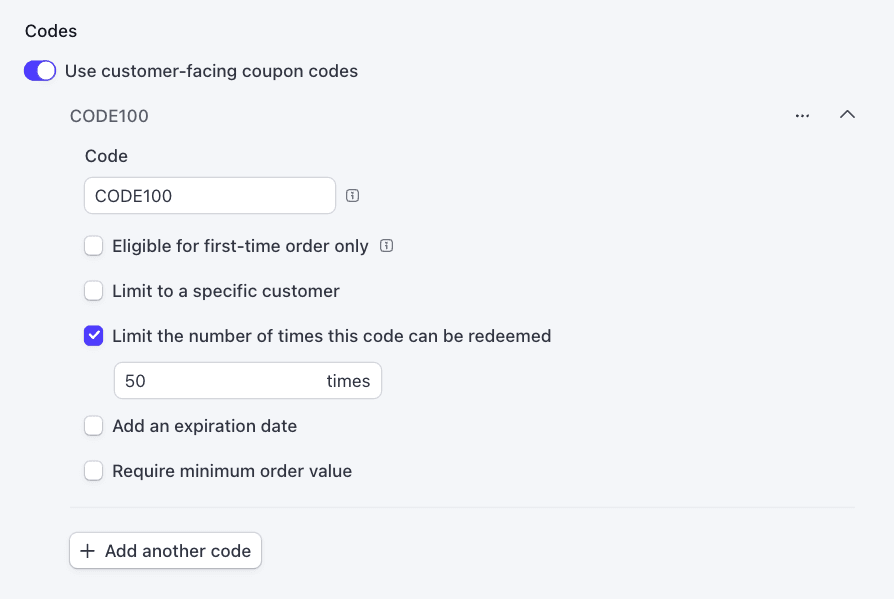
Checkout applies an offer when its code is configured for the selected price and Stripe recognizes an active matching promotion code. Stripe also applies its expiration, redemption, and eligibility rules. Keep the displayed discount aligned with the coupon and check the final checkout total in test mode.
Cancellation and access
Active subscriptions and trials grant the paid plan. A scheduled cancellation can keep that access until the current billing period ends. Customers can restore a scheduled cancellation through billing settings.
The default policy does not grant paid access for past-due or unpaid subscriptions. You can adjust it if your product offers a grace period. Account deletion stays restricted while a subscription is active.
Testing
With a verified test account, complete monthly and yearly checkout using Stripe's test payment details. Confirm the webhook succeeds, billing settings show the subscription, and the portal opens. Repeat with a promotion code and a scheduled cancellation.
If the app still shows Free after checkout, check webhook delivery and the signing secret first. If portal access fails, confirm it is enabled in the same Stripe mode as the customer. More scenarios are covered in deployment troubleshooting.
The webhook guide explains synchronization, delivery diagnostics, and product workflows triggered by subscription changes.
How is this guide?
Last updated on