For the complete documentation index, see llms.txt. Prefer markdown by appending.mdto documentation URLs or sendingAccept: text/markdown.
Data tables
Server-driven tables with search, filters, sorting, column visibility, and pagination, plus a walkthrough for adding your own admin resource.
Every list in the admin panel uses the same data table building blocks: a toolbar with search and filters, sortable column headers, a column visibility menu, pagination, and a loading skeleton. The data is filtered, sorted, and paginated in D1, so a table stays fast with thousands of rows and only the current page reaches the browser.
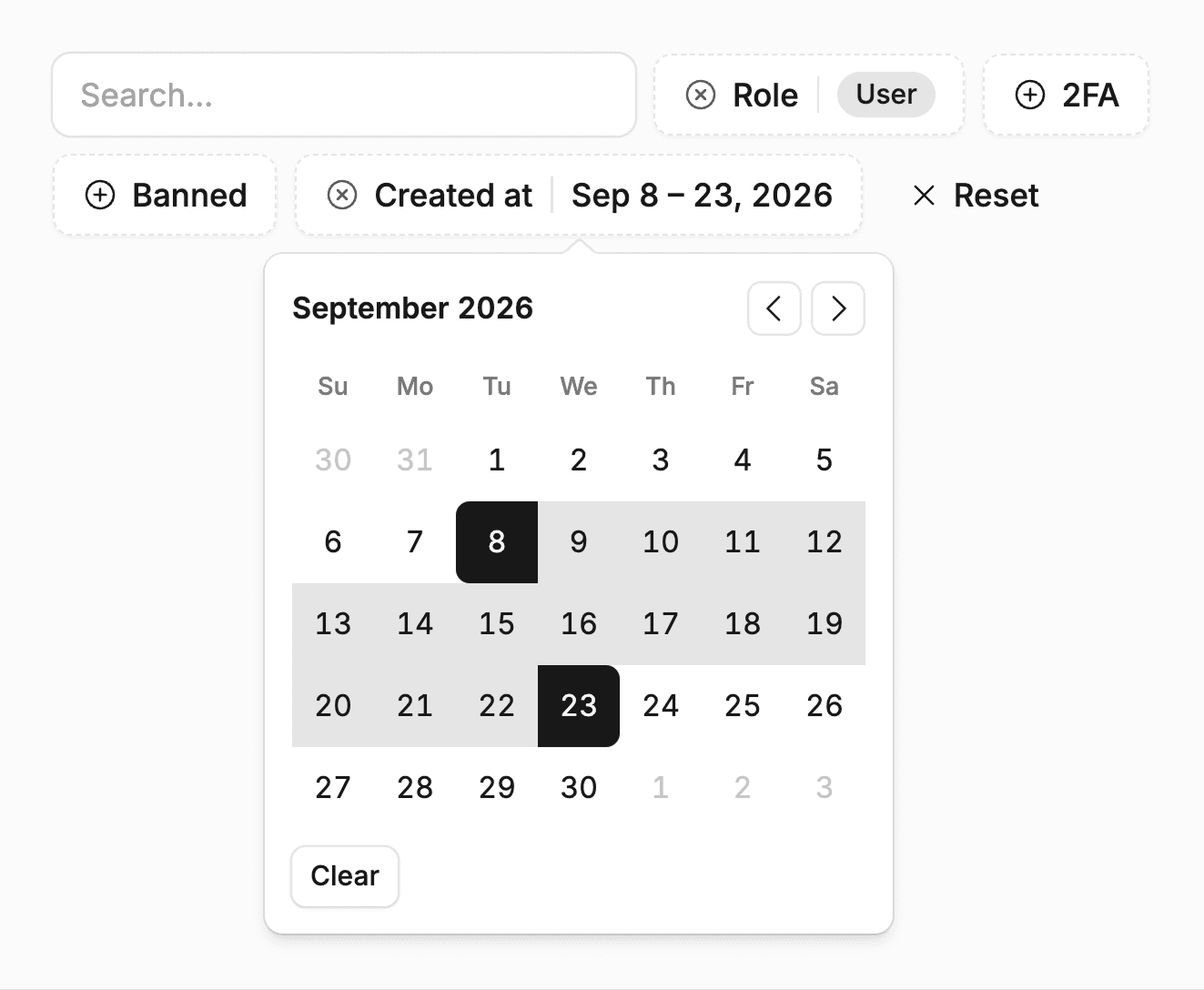
The same pieces work for any list your product needs, inside or outside the admin panel: invoices, uploaded files, reports, or audit entries.
TanStack Table provides the table state, and the kit renders it with Kumo components.
Why TanStack Table?
TanStack Table is headless: it manages sorting, filtering, pagination, and column visibility without dictating markup. That lets the kit render it with Kumo so tables match the rest of the interface, and it fits alongside TanStack Router and Query, which the table uses for URL state and data loading.
State
A table can keep its state in one of two places:
| Mode | Use it for | Behavior |
|---|---|---|
searchParams | The main list on a page | Filters, sort, and page live in the URL; the route validates them and loads data |
local | Secondary lists nested in a page | State lives in React, and the table fetches through a query you provide |
The users and customers lists use URL state, so a filtered view can be bookmarked, shared, and restored with the back button. The sign-in methods and subscriptions tables on a user's page use local state, since several of them share one URL.
A local table receives a function that turns its current state into a query:
const { table, query } = useDataTable({
  persistance: "local",
  columns,
  initialState: { sorting: DEFAULT_SUBSCRIPTIONS_SORT },
  query: ({ page, perPage, sort, filters }) =>
    users.queries.getSubscriptions(
      getUserSubscriptionsInputSchema.parse({
        userId,
        page,
        perPage,
        sort,
        ...filters,
      }),
    ),
});
Keep persistance fixed for the lifetime of a table component.
Filters and columns
Columns declare their filter in the column meta, and the toolbar renders the matching control:
| Variant | Control | Example |
|---|---|---|
text | Search input | Name or email search |
multiSelect | Checkbox list of options | Role, plan, status |
dateRange | Calendar range picker | Sign-up date |
range | Numeric range slider | Number of subscriptions |
A hidden column with the ID q provides free-text search across several fields. Column labels and options come from the translation catalogs, like the rest of the interface.
Validated queries
Table state arrives from the URL or the browser, so the server treats it as untrusted input. Each list declares a Zod schema built from shared helpers in src/modules/common/data-table/schema.ts:
- Pagination with positive pages and a capped page size.
- Sorting limited to an explicit list of sortable columns, so a URL cannot sort by an arbitrary column.
- Filters with length and item limits.
Invalid values fall back to defaults rather than failing the page. On the database side, helpers in src/db/utils.ts turn validated input into Drizzle conditions: escaped text search, date and number ranges, boolean filters, and an ordering with a stable tiebreaker for consistent pages. Each list fetches its rows and total count in one D1 batch.
Add a resource
This walkthrough adds an admin list of the notes table from schema changes. It follows the same structure as the customers list in src/modules/admin/customers/, which is a good file to compare against.
Define the input
Create the schema for the list. Only title is sortable, and q searches titles:
import * as z from "zod";

import {
  paginationSchema,
  sortingSchema,
  textFilterSchema,
} from "@/modules/common/data-table/schema";

export const NOTES_SORT_COLUMNS = ["title"] as const;

export const DEFAULT_NOTES_SORT = [{ id: "title" as const, desc: false }];

export const getNotesInputSchema = paginationSchema.extend({
  sort: sortingSchema(NOTES_SORT_COLUMNS, DEFAULT_NOTES_SORT),
  q: textFilterSchema,
});

export type GetNotesInput = z.output<typeof getNotesInputSchema>;
Query D1
Read one page and the total count in a single batch:
import { count, sql } from "drizzle-orm";

import { db } from "@/db";
import { note } from "@/db/schema";
import { contains, getOrderBy } from "@/db/utils";
import { getOffset } from "@/modules/common/data-table/schema";

import type { GetNotesInput } from "./schema";

export async function getNotes(input: GetNotesInput) {
  const where = input.q ? contains(note.title, input.q) : undefined;
  const orderBy = getOrderBy(
    input.sort,
    { title: sql`lower(${note.title})` },
    note.id,
  );

  const [data, [total]] = await db.batch([
    db
      .select()
      .from(note)
      .where(where)
      .orderBy(...orderBy)
      .limit(input.perPage)
      .offset(getOffset(input)),
    db.select({ count: count() }).from(note).where(where),
  ]);

  return { data, total: total?.count ?? 0 };
}
Select only the columns the table shows when a table holds sensitive fields.
Expose it to admins
Wrap the query in a server function guarded by enforceAdmin, and add query options for it:
import { createServerFn } from "@tanstack/react-start";

import { enforceAdmin } from "@/lib/auth/middleware";

import { getNotes } from "./notes.server";
import { getNotesInputSchema } from "./schema";

export const getNotesFn = createServerFn({ method: "GET" })
  .middleware([enforceAdmin])
  .validator(getNotesInputSchema)
.handler(({ data }) => getNotes(data));import { queryOptions } from "@tanstack/react-query";
import { adminQueryKey } from "@/modules/admin/utils";
import { getNotesFn } from "./notes.functions";
import type { GetNotesInput } from "./schema";
const notesKey = [...adminQueryKey, "notes"] as const;
export const notes = {
queries: {
key: notesKey,
getAll: (input: GetNotesInput) =>
queryOptions({
queryKey: [...notesKey, "list", input],
queryFn: () => getNotesFn({ data: input }),
}),
},
} as const;Build the table
Define the columns and render the table with URL state. The hidden q column powers the search input:
import { keepPreviousData, useQuery } from "@tanstack/react-query";
import { useMemo } from "react";

import { m } from "@/lib/i18n/messages.js";
import { DataTable } from "@/modules/common/data-table/data-table";
import { DataTableColumnHeader } from "@/modules/common/data-table/data-table-column-header";
import { DataTableToolbar } from "@/modules/common/data-table/data-table-toolbar";
import {
  DataTableFilterVariant,
  type DataTableFeatures,
} from "@/modules/common/data-table/features";
import { useDataTable } from "@/modules/common/hooks/use-data-table/use-data-table";

import { notes } from "./notes.queries";

import type { GetNotesInput } from "./schema";
import type { ColumnDef } from "@tanstack/react-table";

interface AdminNote {
  id: string;
  userId: string;
  title: string;
}

export function NotesDataTable({ input }: { input: GetNotesInput }) {
  const { data } = useQuery({
    ...notes.queries.getAll(input),
    placeholderData: keepPreviousData,
  });

  const columns = useMemo<ColumnDef<DataTableFeatures, AdminNote>[]>(
    () => [
      {
        id: "q",
        accessorFn: (row) => row.title,
        enableHiding: false,
        enableSorting: false,
        meta: {
          variant: DataTableFilterVariant.TEXT,
          placeholder: `${m.search()}...`,
        },
      },
      {
        id: "title",
        accessorKey: "title",
        header: ({ column }) => (
          <DataTableColumnHeader column={column} title={m.title()} />
        ),
        meta: { label: m.title() },
      },
    ],
    [],
  );

  const { table } = useDataTable({
    persistance: "searchParams",
    data: data?.data ?? [],
    rowCount: data?.total ?? 0,
    columns,
    initialState: { columnVisibility: { q: false } },
  });

  return (
    <DataTable table={table}>
      <DataTableToolbar table={table} />
    </DataTable>
  );
}
The example uses a new title message. Add it to messages/en.json and messages/es.json, since the kit's lint rules reject literal strings in JSX. See translations.
Add the route
The route validates the URL with the same schema, keeps default values out of the address bar, and loads the page on the server:
import { createFileRoute, stripSearchParams } from "@tanstack/react-router";

import { NotesDataTable } from "@/modules/admin/notes/notes-data-table";
import { notes } from "@/modules/admin/notes/notes.queries";
import {
  DEFAULT_NOTES_SORT,
  getNotesInputSchema,
} from "@/modules/admin/notes/schema";
import {
  DEFAULT_PAGE,
  DEFAULT_PER_PAGE,
} from "@/modules/common/data-table/schema";

export const Route = createFileRoute("/admin/notes/")({
  validateSearch: getNotesInputSchema,
  search: {
    middlewares: [
      stripSearchParams({
        page: DEFAULT_PAGE,
        perPage: DEFAULT_PER_PAGE,
        sort: DEFAULT_NOTES_SORT,
      }),
    ],
  },
  loaderDeps: ({ search }) => search,
  loader: ({ context, deps }) =>
    context.queryClient.query({
      ...notes.queries.getAll(deps),
      staleTime: "static",
    }),
  component: NotesPage,
});

function NotesPage() {
  const search = Route.useSearch();

  return <NotesDataTable input={search} />;
}
The URL keys must match the schema: page, perPage, sort, and one key per filterable column ID.
Register navigation
Add the destination to src/config/paths.ts under admin, then add a menu item to getMenu in src/routes/admin/route.tsx with its label, path, and a Phosphor icon. The admin breadcrumbs pick it up from the menu.
Open /admin/notes, search for a title, change the sort, and reload: the page should restore the same view from the URL. Check a non-admin account too; the layout redirects it, and calling the server function directly returns 403.
For write actions such as deleting a note, add a POST server function with enforceAdmin and validated input, then invalidate the list's query key after it succeeds. Data fetching covers mutations and refreshes.
How is this guide?
Last updated on
User management
Find any account, change roles, ban or delete users, impersonate customers for support, and manage their sign-in methods, subscriptions, and sessions.
Overview
A subscription billing foundation with Stripe checkout, a shared plan catalog, trials, discounts, customer management, and paid feature access.