For the complete documentation index, see llms.txt. Prefer markdown by appending.mdto documentation URLs or sendingAccept: text/markdown.
User management
Find any account, change roles, ban or delete users, impersonate customers for support, and manage their sign-in methods, subscriptions, and sessions.
The users section is where support and moderation happen. It covers every account on the platform, including anonymous guests, and gives admins the controls to answer a customer's question or contain a problem quickly.
Users list
The list at /admin/users shows each user's name, email, role, two-factor status, ban state, and sign-up date.
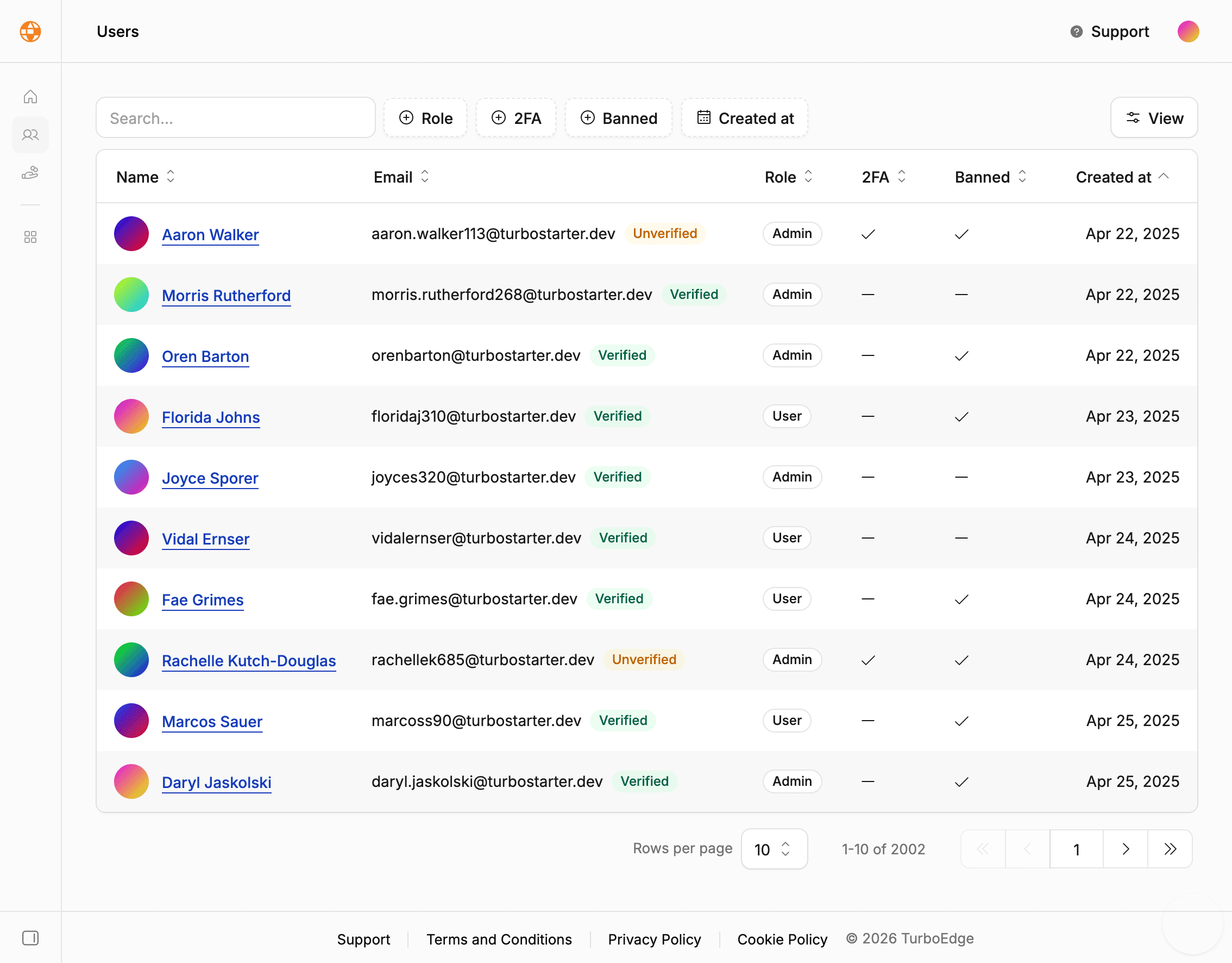
- Search by name or email.
- Filter by role, two-factor status, ban state, and a sign-up date range.
- Sort by any of those columns, choose visible columns, and change the page size.
The current filters, sort, and page live in the URL. Admins can bookmark a view such as "banned users this month", share it with a teammate, or use the browser's back button to return to it. Data tables explains how this state is validated before it reaches the database.
User details
Selecting a user opens their details page. The header shows their avatar, email, and badges for email verification, anonymous accounts, bans, and your own account, along with the main actions.
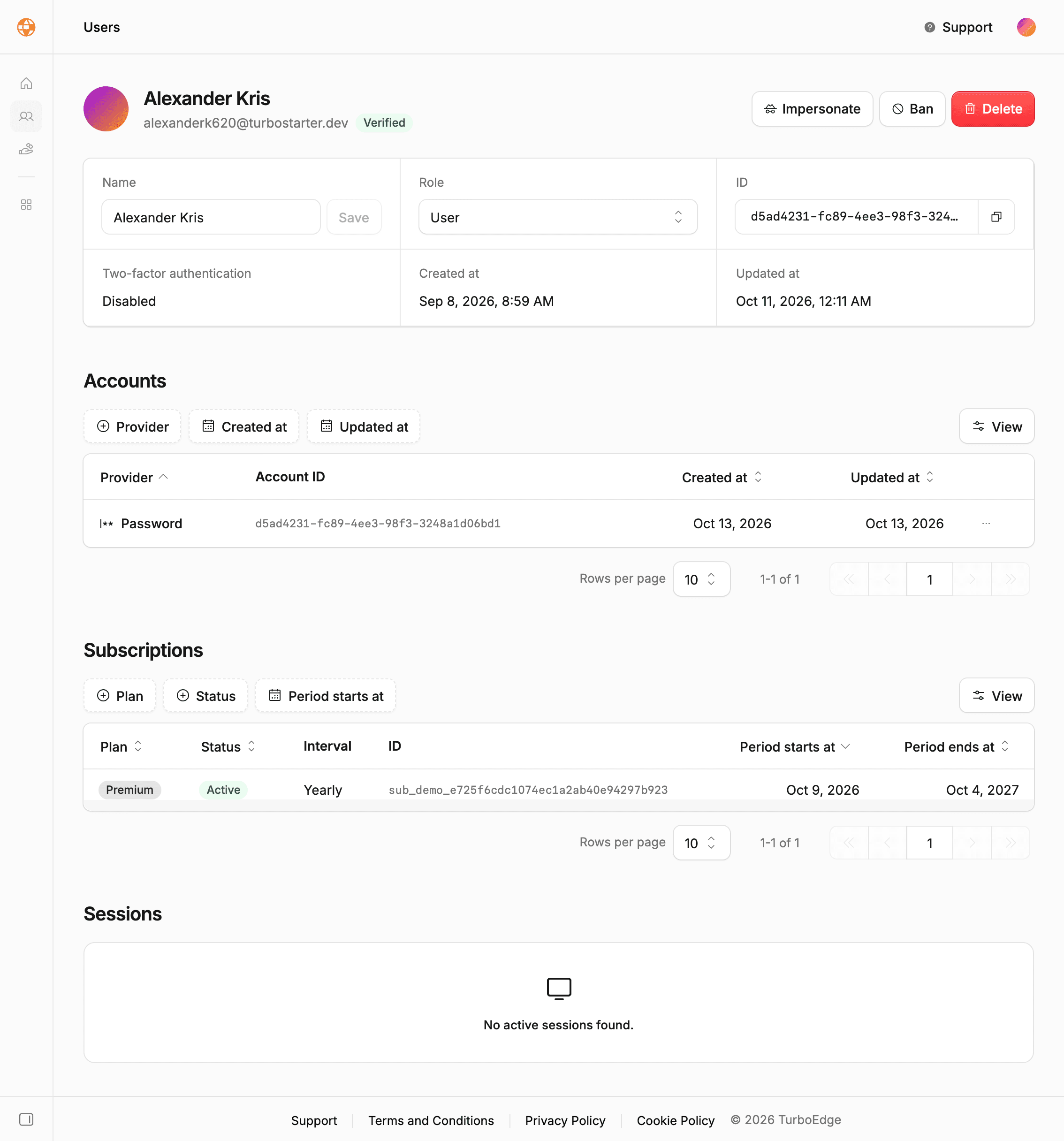
| Field | What admins can do |
|---|---|
| Name | Edit it, for example to correct a support ticket typo |
| Role | Switch between user and admin; your own role is locked |
| ID | Copy it for logs, Stripe, or database lookups |
| Two-factor | See whether the user has turned it on |
| Ban details | See the reason and expiry while a ban is active |
Below the details, three sections describe how the user reaches and pays for your product.
Sign-in methods
Lists the password and social accounts linked to the user, filterable by provider and date. Admins can remove a method, for example a social account the customer no longer controls. A user always keeps at least one method, so the last one cannot be removed.
Set password creates a password sign-in if the user does not have one, or replaces the current password. Use it to help a customer who cannot complete recovery, and share the new password through a channel you trust.
Account details never include password hashes or provider tokens; the server selects only the fields the table displays.
Subscriptions
Shows the Stripe subscriptions billed to the user, with plan, status, interval, current period, and scheduled cancellation, filterable by plan, status, and period. The data comes from the subscriptions your webhooks keep in sync.
Sessions
Lists the devices currently signed in as the user. Revoke a single session or sign the user out everywhere, for example after a suspected account takeover.
Impersonation
Impersonate signs you in as the user so you can see exactly what they see: their dashboard, data, plan, and settings. It is the fastest way to reproduce a bug report or walk a customer through a setting.
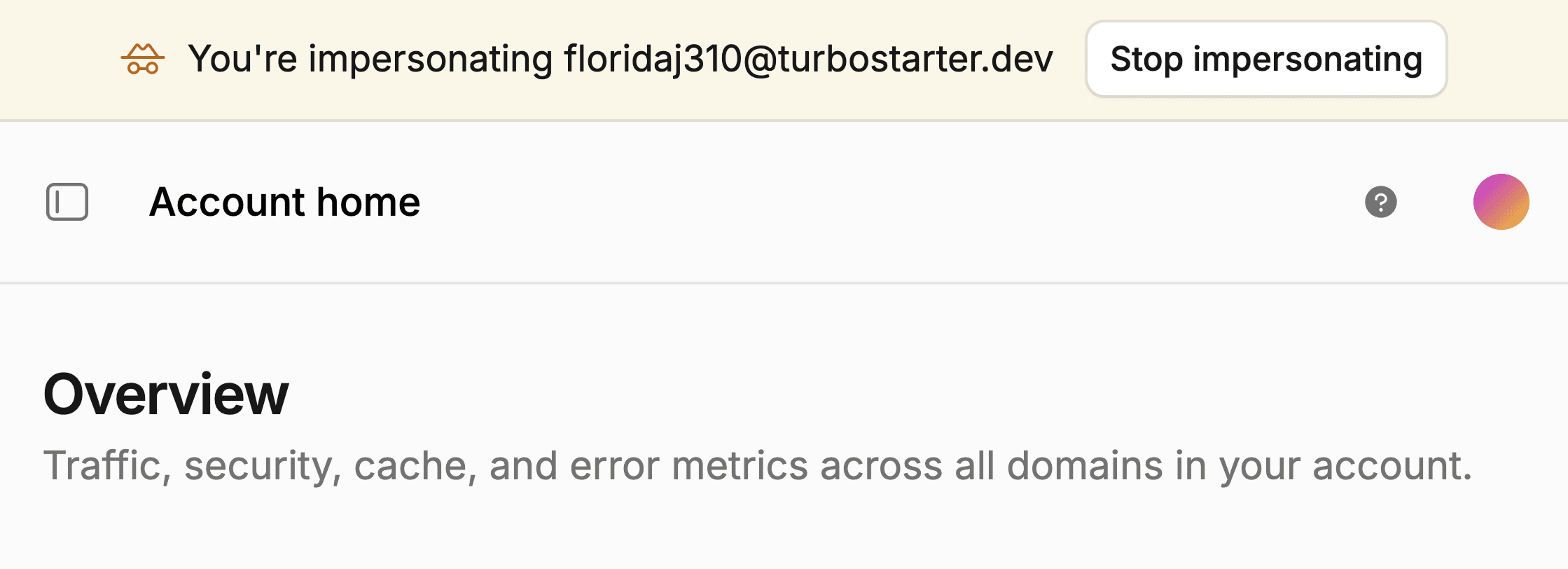
While impersonating, a banner at the top of the dashboard shows whose account you are using, with a button to stop. Stopping fully reloads the app and returns you to the user's admin page, so none of their cached data carries into your admin session.
- Admins cannot impersonate themselves or other admins.
- Impersonation sessions are time-limited (one hour by default). Adjust
impersonationSessionDurationin the admin plugin options if your support workflow needs longer. - Actions you take while impersonating are performed as that user. Prefer looking over changing, and tell the customer when you act on their behalf.
Bans
Ban blocks a user from signing in. Banning immediately revokes all of their sessions, so access ends on every device.
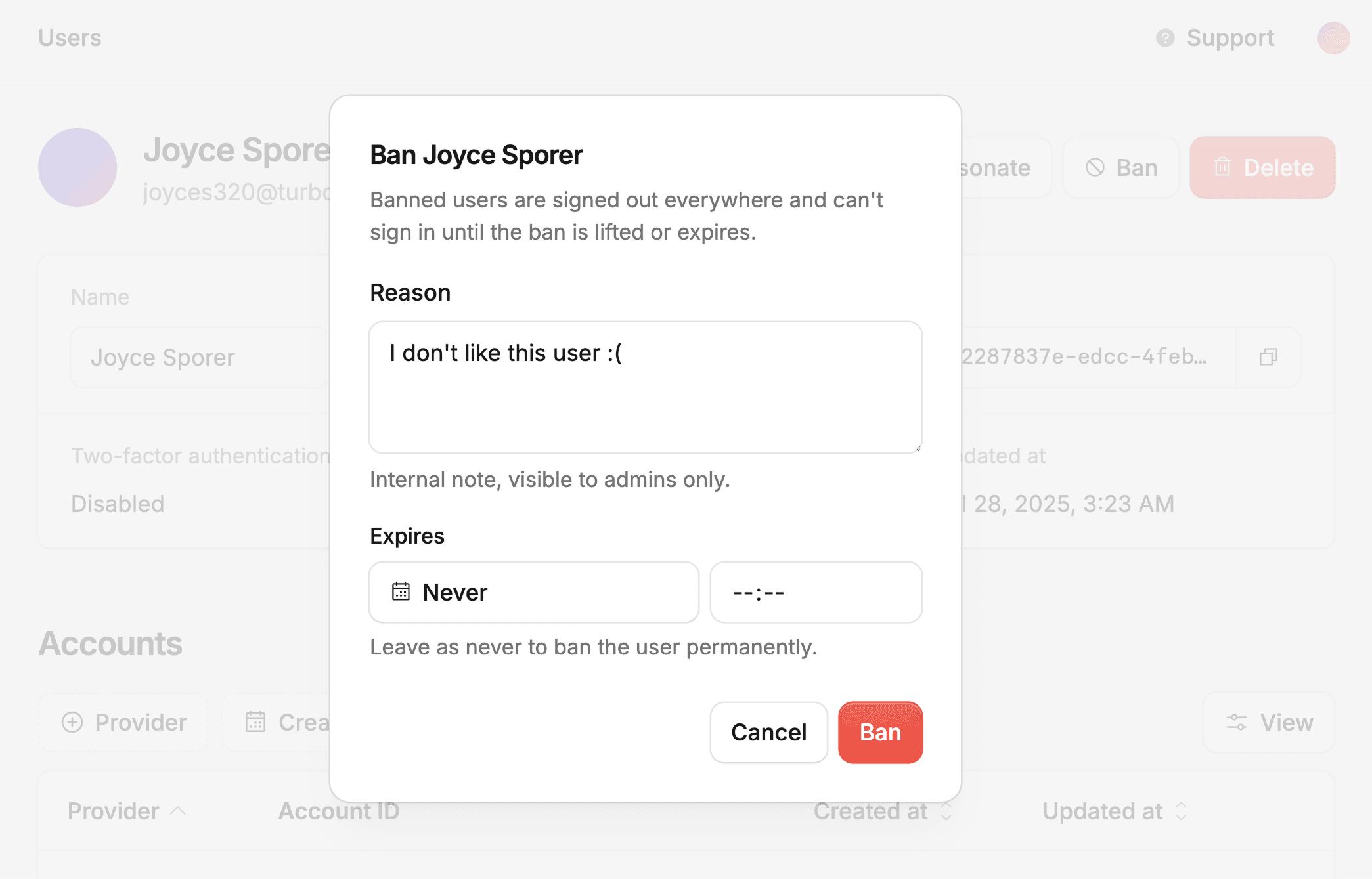
- The reason is an internal note shown only to admins.
- The expiry is optional. Leave it as never for a permanent ban, or pick a future date and the ban lifts automatically.
- Unban restores access at any time. You cannot ban your own account.
Deletion
Delete permanently removes the user with their sessions and sign-in methods. Records that reference the user with a cascading foreign key, such as your own tables, are removed too, and the kit deletes their uploaded avatars from R2. You cannot delete your own account.
Subscribers
Admin deletion does not check or cancel Stripe subscriptions. The customer's subscription keeps billing in Stripe, and its record remains in D1. Customers deleting their own account are blocked while a subscription is active, as described in account deletion. Cancel a subscription in Stripe before deleting a paying user.
To apply the same rule to admin deletion, add a before hook next to the existing after hook in src/lib/auth/server.ts. The catalogs already include a matching message:
databaseHooks: {
  user: {
    delete: {
      before: async (user) => {
        if (await hasActiveSubscription(user.id)) {
          throw new APIError("BAD_REQUEST", {
            message: m["admin.users.user.delete.blocked"](),
          });
        }
      },
      after: async (user) => {
        // existing avatar cleanup
      },
    },
  },
},
Database hooks run for every user deletion, so the check also covers the customer's own deletion path.
Audit
The kit does not keep a separate admin activity log. Admin requests appear in your Worker logs with their request IDs. If your product needs an audit trail, record the acting admin, the target user, and the action in your own table from the operations you care about.
How is this guide?
Last updated on