For the complete documentation index, see llms.txt. Prefer markdown by appending.mdto documentation URLs or sendingAccept: text/markdown.
Two-factor authentication
Authenticator app codes, backup codes, and trusted devices for password sign-in, with customer settings and a verification step built in.
Two-factor authentication (2FA) asks for a second proof of identity after a correct password. A stolen or reused password alone is no longer enough to open the account.
Edge Kit includes the complete customer flow: turning 2FA on in security settings, linking an authenticator app, saving recovery codes, and completing the extra step during sign-in. It uses Better Auth's two-factor plugin, which stores each customer's secret and recovery codes in D1 next to the rest of their account.
Methods
| Method | Role |
|---|---|
| Authenticator app | Six-digit time-based codes (TOTP) from an app on the customer's device |
| Backup codes | Single-use recovery codes for when the authenticator is unavailable |
| Trusted device | An optional 30-day exemption for the browser that completed the second step |
Any TOTP-compatible app works, such as 1Password, Google Authenticator, or Bitwarden.
Setup
Customers manage 2FA from the security settings page. Every change, including viewing the setup key again, asks for the current password first, so an unattended signed-in browser cannot quietly replace the second factor.
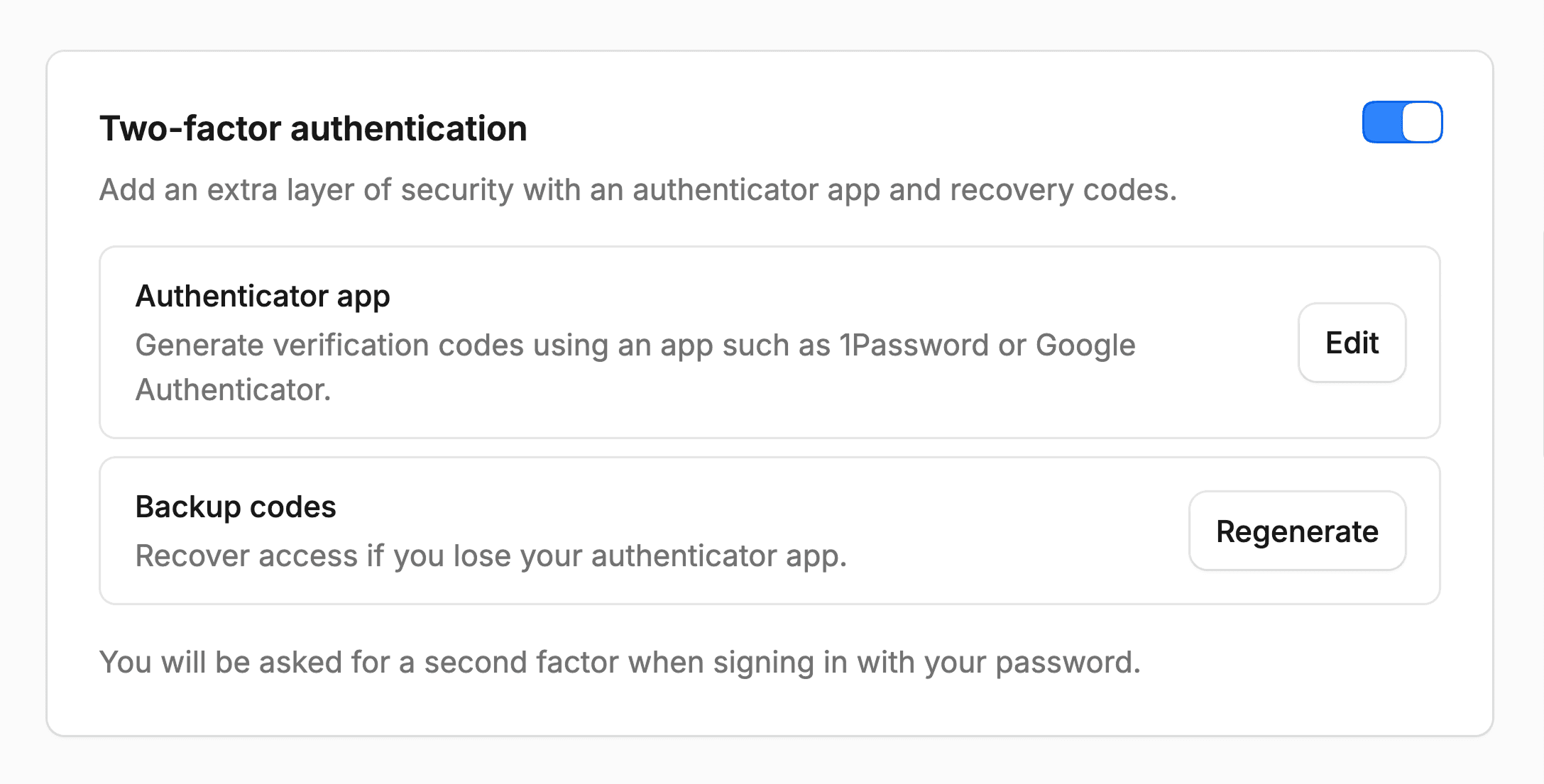
Turn it on
The customer switches on two-factor authentication and confirms their password.
Link the authenticator
A QR code appears for the authenticator app to scan. The setup key is shown below it for apps that only accept manual entry.
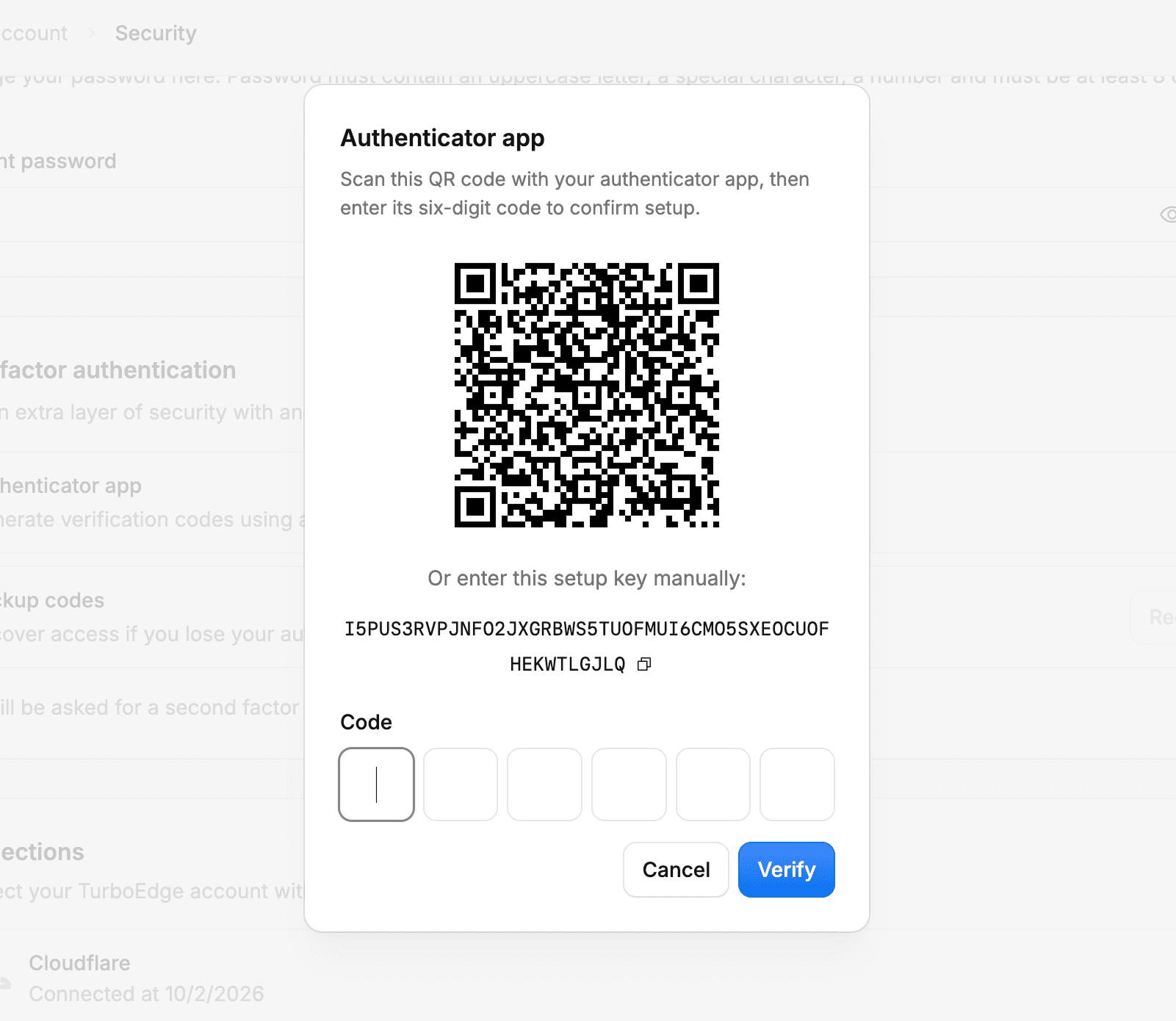
Confirm a code
The customer enters a current code from the app. 2FA becomes active only after this succeeds, which proves the app was linked correctly.
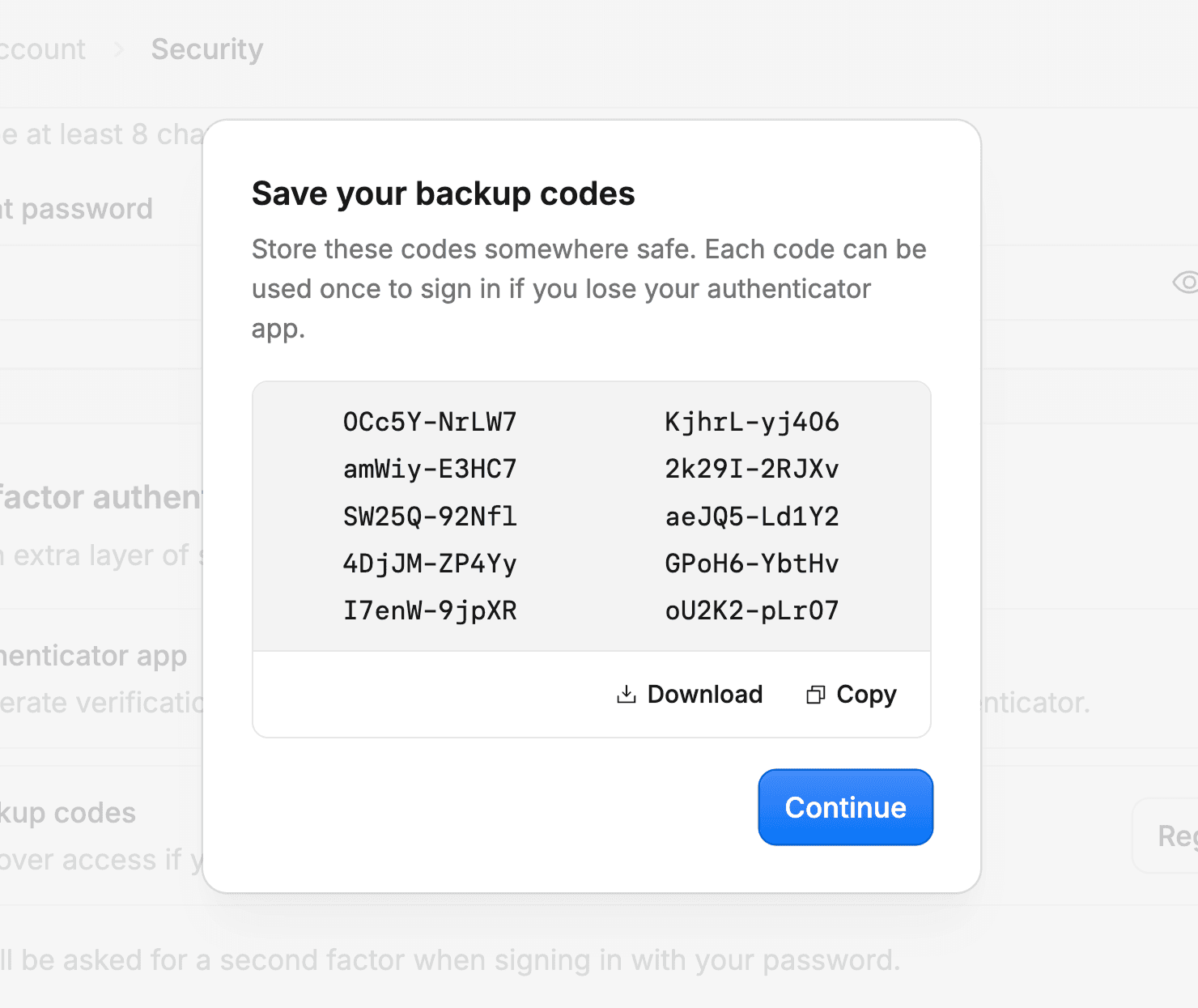
Save backup codes
The kit then shows a set of backup codes to copy and store safely. Each one works once.
From the same card, customers can open the authenticator setup again to move to a new device, regenerate backup codes (the previous set stops working), or turn 2FA off.
Sign-in
When a customer with 2FA signs in with their email and password, the login screen switches to a verification step instead of opening the dashboard. The session is created only after a valid code.
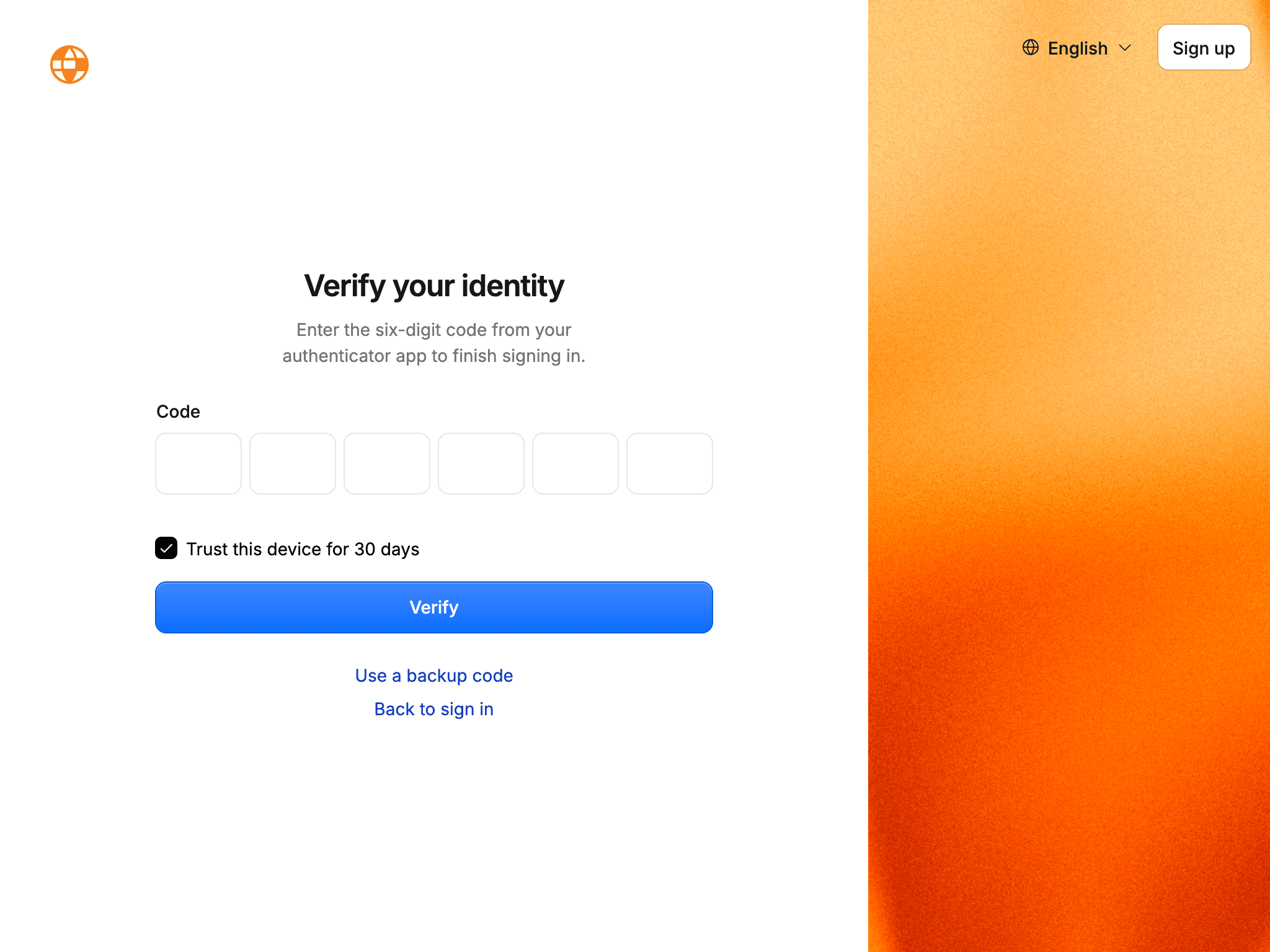
- Authenticator code: the six-digit input submits automatically once complete.
- Backup code: the customer can switch to a recovery code if their device is lost.
- Trusted device: checking the box skips the second step in that browser for 30 days.
The verification step is short-lived. If it expires, the customer signs in with their password again.
Account requirements
Two-factor protects password sign-in, so it needs a password on the account:
- Customers who registered with email and password can turn it on directly.
- Customers who only use Google, GitHub, or Cloudflare see a note that a password is required. They can add one through the password recovery flow, after which the switch becomes available.
- Social sign-in relies on the provider's own account security, so it does not show the extra step.
If your product turns off password sign-in in auth configuration, review whether security settings should still offer 2FA.
Configuration
The plugin is registered in src/lib/auth/server.ts, with the client counterpart in src/lib/auth/client.ts:
twoFactor({ issuer: appConfig.name }),The issuer is the label customers see in their authenticator app, so it follows your product name. The plugin's options also control backup code generation and related limits; see the plugin reference.
The plugin adds a two_factor table and a twoFactorEnabled column on the user, both included in the kit's migrations. When you change plugin options that affect the schema, regenerate it with pnpm db:generate.
One-time codes by email
Better Auth can also send one-time codes by email or SMS. The kit ships the authenticator app and backup codes only. To add email codes, configure the plugin's OTP sender with an email template and add the method to the sign-in step.
Sensitive actions
The current user's 2FA status is available on the server, so a feature can require it before an especially sensitive action. Within a protected server function, the check is short:
if (!context.user.twoFactorEnabled) {
  throw new Error("Turn on two-factor authentication to continue.");
}
This adds a policy for that operation. It does not verify a fresh code; it confirms that the account is protected by a second factor at sign-in.
Administrators can see and filter each user's 2FA status in the admin users list.
Verification
Turn on 2FA with a password account, sign out, and sign in again with an authenticator code and then with a backup code. Confirm that a used backup code is rejected, that a trusted browser skips the step, and that a social-only account cannot enable 2FA until it has a password.
How is this guide?
Last updated on
Account management
Ready-to-use profile and security settings, with email changes, passwords, two-factor, linked accounts, sessions, and subscription-aware account deletion.
Overview
A super admin panel for your Edge app: platform summary, user and customer management, role-based access, and server-side admin checks.